Table of Contents
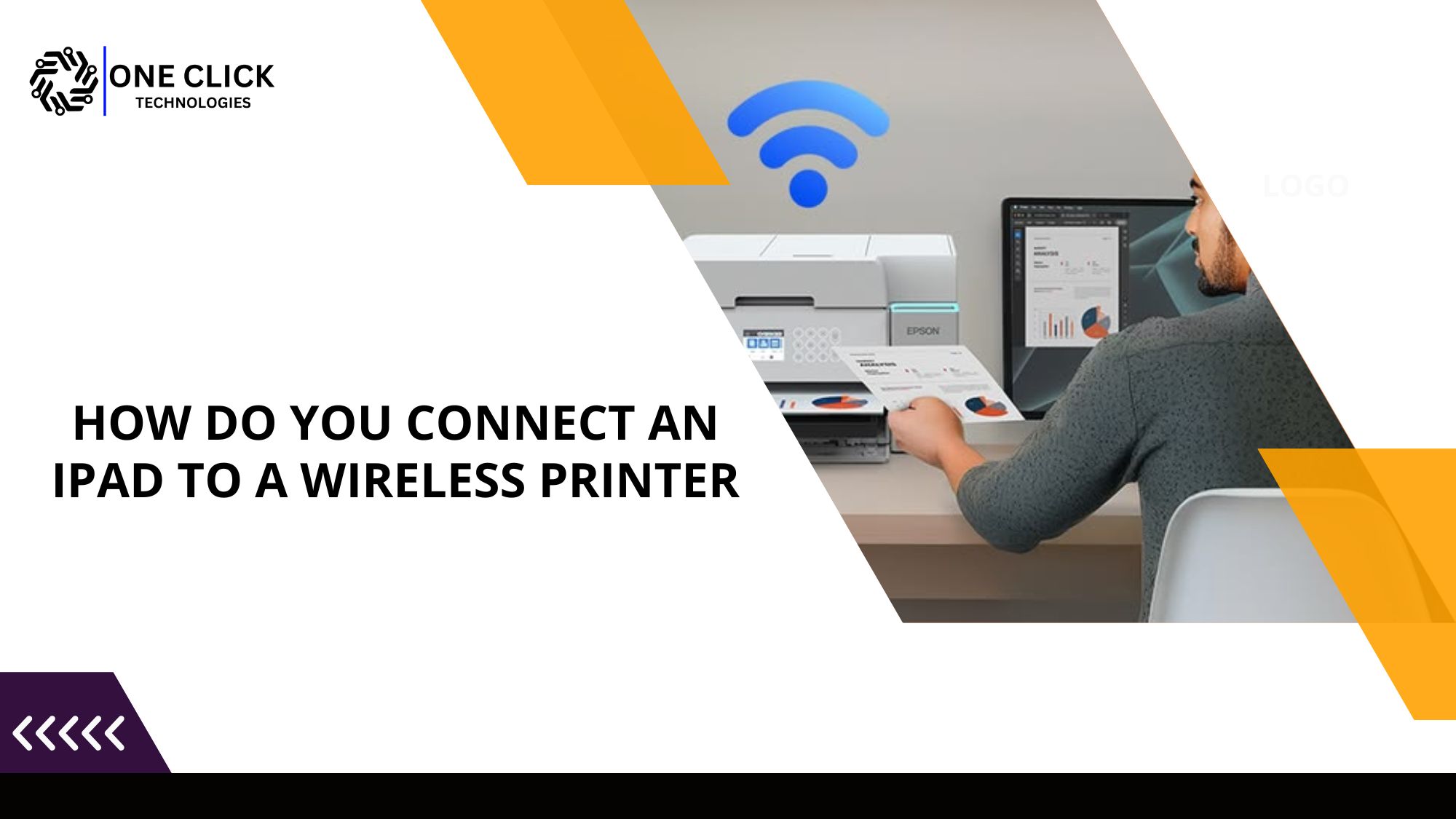
How do you connect an iPad to a wireless printer when both are on the same Wi-Fi but nothing prints? First, check that both devices are on the same main network, not a guest network or the printer’s own “DIRECT” signal. Then restart the router, printer and iPad in that order, turn off any VPN, and make sure AirPrint is switched on in the printer’s settings page. After that, tap Share, choose Print, and select your printer.
In most homes, the printer isn’t faulty. The iPad simply can’t see it because of a network setting. This is the same checklist OneClick Technologies LLC technicians use on these calls, and it usually takes under 15 minutes.
Key Takeaways
- There’s no “add printer” menu in iPadOS. If discovery works, the machine shows up on its own.
- “Same network” isn’t always the same segment. Guest networks, separate band names, and Direct signals split devices apart.
- Matching address ranges, no VPN, and discovery switched on solve most cases.
- Other models need the brand’s app.
- A reserved IP address prevents repeat problems.
Want it working tonight?
Talk to a US-based technician. From $59.99, and if we don’t solve it, you don’t pay.
How Does AirPrint Work on an iPad?
AirPrint is Apple’s built-in, driverless system that allows you to print from an iPhone, a tablet, or a Mac with no extra software. The device listens for machines that announce themselves on the local network (a protocol called Bonjour), then sends the job straight to them. No wire or driver is needed.
| At a glance | |
|---|---|
| Definition | Driverless wireless printing built into iOS and iPadOS |
| Why it matters | When discovery works, there’s nothing to set up |
| Benefits | Supported by most modern printers; handles copies, page ranges, and double-sided output |
| Drawbacks | Depends on the network passing discovery traffic, and there’s no manual “add by IP” option |
| Best practice | Keep everything on the main network, not the guest one, and reserve a fixed IP address for the machine |
That last drawback explains most “same network, still nothing” cases. Both devices can be online and still unable to see each other.
How Do You Print From an iPad, Step by Step?
To print from your iPad, open the file, tap the Share icon, choose Print, pick your printer, set the number of copies, and confirm. If the machine isn’t in the list, the problem is discovery, not your settings.
- Open the photo, PDF, email, or page you want to print.
- Press the Share button, the square with an upward arrow. In Mail, it’s under the reply arrow instead.
- Scroll to find the Print option.
- Tap Printer and choose yours from the list.
- Set copies, page range, and color, then confirm.
One thing confuses many people: there’s no button to add a printer in iPadOS. It either appears in that list automatically or it doesn’t, which is why the fixes below focus on the network. For first-time setup, see our guide to adding a printer to an iPad for the first time.
Printer not showing up on the list?
A technician can walk through the checks below with you in a single call.
Why Can’t My iPad Find the Printer on the Same Wi-Fi Network?
A tablet can’t find a machine that’s connected to the same Wi-Fi when discovery traffic is blocked, or when the two aren’t really on the same network segment. Typical reasons are a guest network, a separate 2.4 GHz network name, router isolation, a VPN, or discovery being switched off on the hardware.
| Cause | How to spot it | What to do |
|---|---|---|
| Different network or band | Names differ, e.g. “Home” vs “Home-2G” | Join both to the same network name |
| Machine on its own Direct network | The tablet’s network list shows “DIRECT-xx-…” | Rejoin your router’s network, not its own signal |
| Guest network or AP isolation | Devices on it can’t see each other | Use the main network, or turn off client isolation |
| Mesh or extender filtering | Works near the router, fails near the extender | Update the mesh firmware, or enable multicast/mDNS |
| VPN on the tablet | A VPN badge in the status bar | Turn the VPN off while printing |
| Discovery disabled | The settings page shows it off | Turn on AirPrint, Bonjour, and IPP |
| Deep sleep | It drops off the network overnight | Wake it with any button and retry |
The Direct network catches a lot of people. Many machines broadcast their own setup signal. If your tablet joined it once, it may reconnect there instead of your home network, leaving the two devices apart.
How to Connect Printer to iPad Wirelessly When It Still Won’t Print
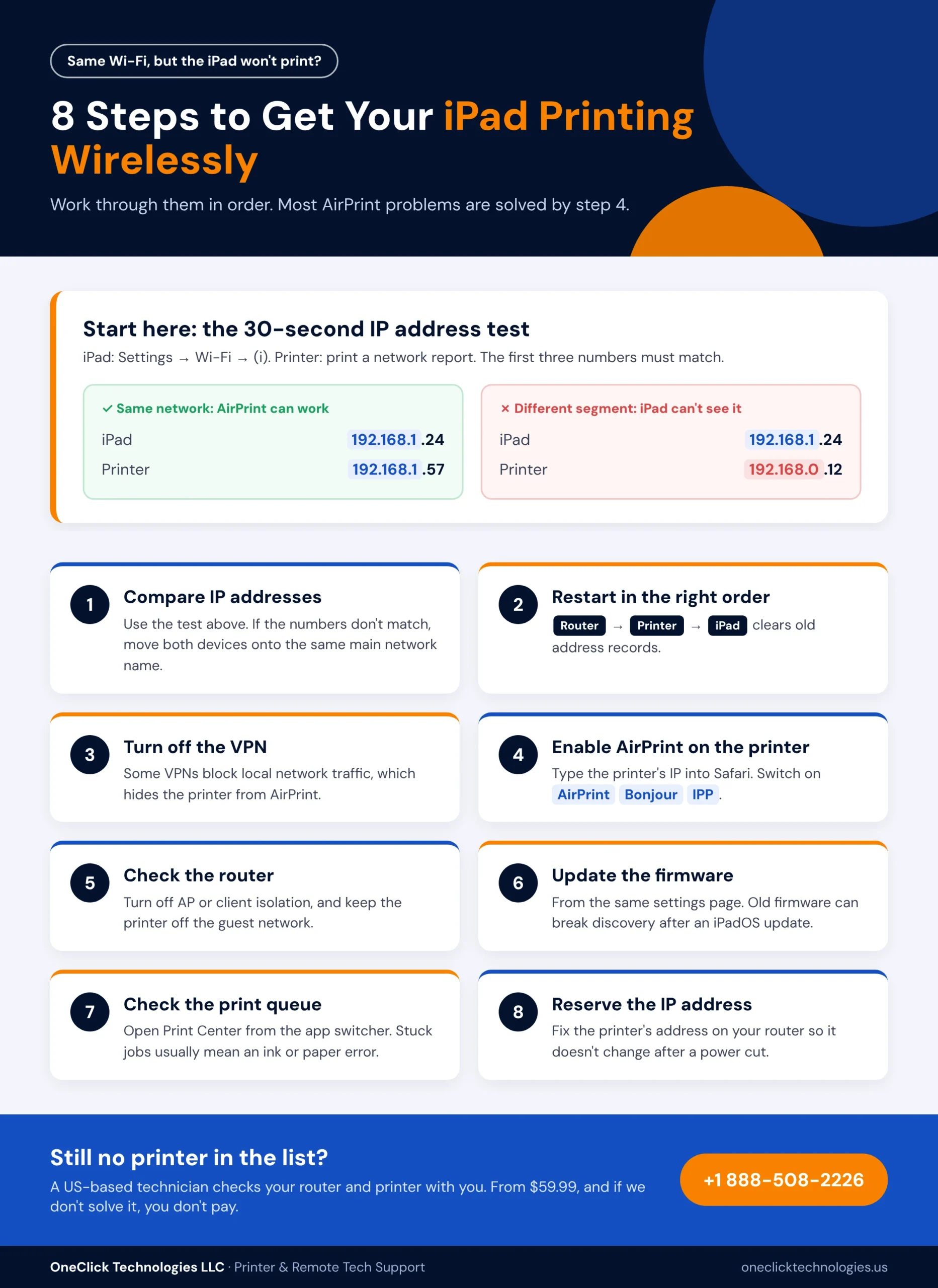
Confirm both devices share the same address range, restart them in the right order, turn off any VPN, and check the discovery settings on the machine’s own web page. Those four checks solve most cases.
- Compare addresses. On the tablet, go to Settings → Wi-Fi → tap (i) next to your network and note the IP address, e.g. 192.168.1.24. Print a network report from the printer’s control panel. The first three numbers should match. If they don’t, the devices sit on different segments and won’t see each other.
- Restart in order: router, then the machine, then the tablet. This clears stale address records.
- Turn off the VPN. Some VPNs block local traffic.
- Open its settings page. Type the machine’s IP address into Safari. Under network or web services, make sure AirPrint, Bonjour (mDNS), and IPP are enabled.
- Check the router. Turn off “AP isolation” on your main network, and keep the hardware off any guest network. Our guide to securing your home network explains these settings.
- Update the firmware from that settings page. Old firmware can break discovery after a system update.
- Check the queue. Open Print Center from the multitasking view. Stuck jobs usually mean an ink or paper error, not a network connection problem.
- Reserve the IP address on your router so it doesn’t change after a power cut.
If it won’t join the network at all, see why a printer won’t connect to WiFi. If the tablet keeps dropping off, try this tablet connection quick fix. For an HP printer that says “connected” but stays idle, read why it’s connected but not printing.
Still nothing in the list?
OneClick technicians check your router and printer settings with you, often in one call.
What If Your Printer Doesn’t Support AirPrint?
If your printer supports AirPrint, you don’t need anything extra. If not, install the manufacturer’s app, such as HP Smart, Epson Smart Panel, or Canon PRINT. These apps find the device on the network and can usually add it by IP address, which the standard system can’t do.
Check compatibility first. Apple Support’s AirPrint page explains how AirPrint works and links the official list of supported models. Most current models from brands like HP, Epson, Canon, and Brother are AirPrint-compatible, but older budget models sometimes aren’t.
| Method | Needs a router? | Best for |
|---|---|---|
| AirPrint | Yes | Any AirPrint-enabled printer, without installing an app |
| Brand app | Usually | Other models, scanning, and supply levels |
| Wi-Fi Direct | No | Quick jobs when the home network is down |
| Third-party apps | Yes | Older network models |
| Network print hub | Yes | USB-only models |
| Bluetooth | No | Small portable photo printers only |
Cable-only hardware is the hardest case. A tablet can’t print over USB to a standard model, so a print server on the network is the only way to print directly. Replacing a very old machine is often cheaper. For Canon owners, our Canon Wi-Fi setup guide covers that brand.
When Should You Get Remote Support for iPad Printing?
Get help when the address ranges match, discovery is on, and the machine still won’t appear. By then the cause is usually a router setting, mesh firmware, or a network-segment problem that’s hard to spot without experience.
That’s the kind of remote support AirPrint problems need. A technician connects to a computer on the same network, checks the router and the device’s web settings, and guides you through the tablet side by phone. OneClick Technologies LLC offers single-incident help from $59.99, with a +$60 add-on for printer installation. The 1 Year Support Plan is $219.99 a year and covers up to five devices, including printers, tablets, and phones. If we don’t solve it, you don’t pay. See our printer setup service or current pricing.
Done troubleshooting? Let us finish it.
Contact OneClick Technologies LLC today. Printer help from $59.99, and if we don’t solve it, you don’t pay.
Conclusion: Get Printing Again Without the Guesswork
If you’ve been wondering how do you connect an iPad to a wireless printer that’s already on your network, the answer is rarely a new cable or new hardware. It’s making sure discovery traffic can travel from one device to the other. Get that right and the printer and iPad stay paired, and you can connect your iPad to any other supported model the same way.
When the checklist doesn’t do it, OneClick Technologies LLC finds the setting that’s in the way and gets everything printing on every device in the house. If you still need to connect iPad to wireless printer hardware from scratch, our team handles that too.
Frequently Asked Questions
Why does my tablet say “No AirPrint Printers Found”?
The tablet can’t see the discovery signal. Check the network name and address range, turn off any VPN, and confirm discovery is enabled in the device’s settings page.
Can I connect the printer without a home network?
Yes, if it has a Direct mode. Join its “DIRECT” network from the tablet, send the job, then switch back to your home network.
Does this work the same on an iPhone?
Yes. Whether you’re on an iPhone or iPad, both use AirPrint and the same Print Center, so the steps are identical.
Do I need an app to print documents?
Not with an AirPrint printer. You only need to print using an app for other models, or for extras like scanning.
Can several iPads share one machine?
Yes. Once it’s visible, all tablets and phones on the same network can use it. The printer must stay on the main network, not a guest one.