Table of Contents
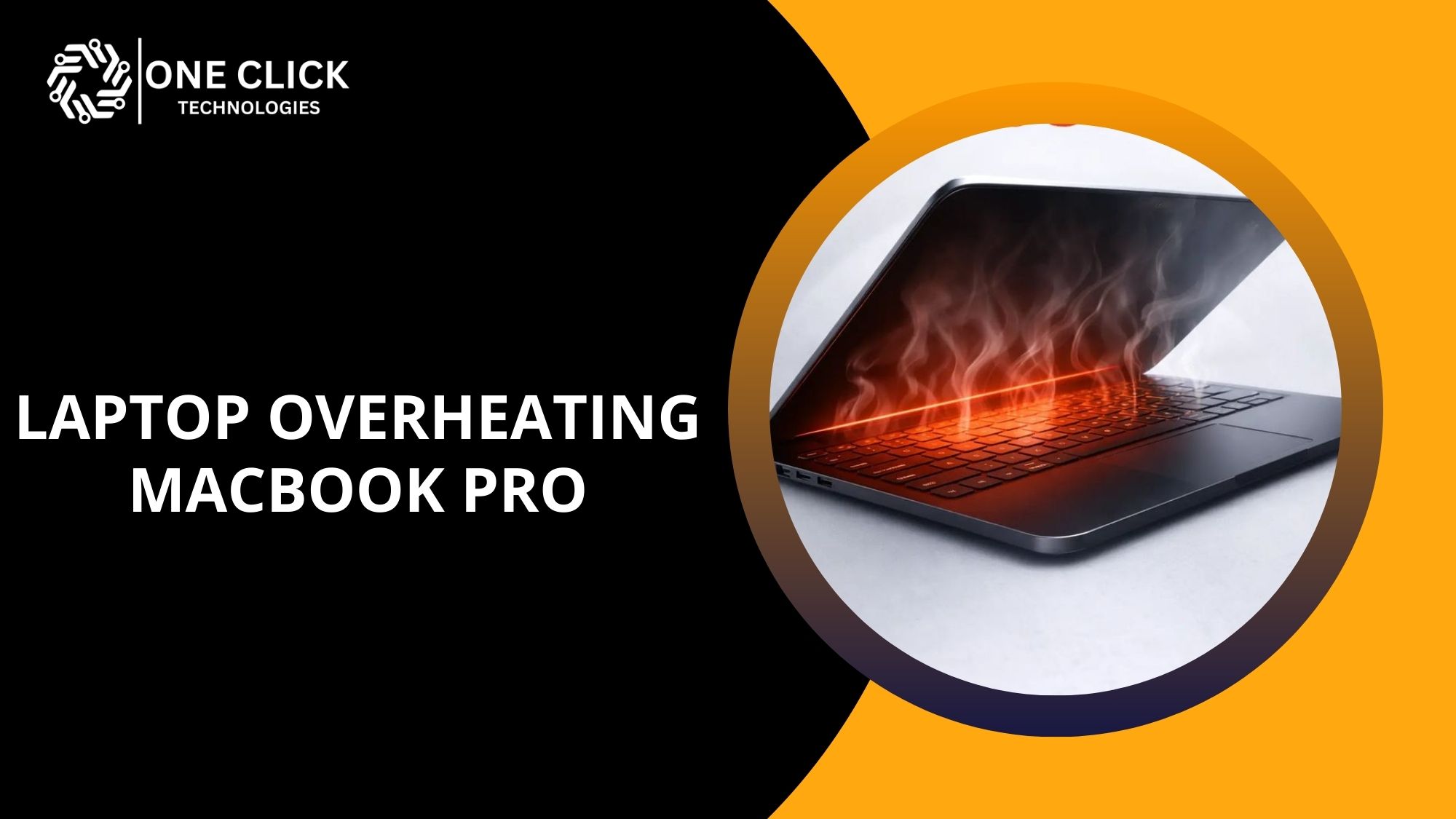
If you notice laptop overheating macbook pro while charging, the most common reason is increased power usage from the CPU, GPU, and battery charging circuit working at the same time. When a MacBook Pro is plugged in, the system draws more electricity to run applications while also charging the battery, which raises the internal temperature and makes the device feel warm or sometimes really hot. In most cases this is normal within Apple’s recommended operating temperature, but if the laptop frequently overheats, becomes uncomfortable to touch, or slows down, there may be an underlying overheating issue such as high CPU usage, poor airflow, blocked air vents, or heavy processes running in the background.
This guide explains why MacBook Pro gets hot while charging, how to identify the problem, and practical solutions to stop your MacBook from overheating.
Why Does a MacBook Pro Overheat While Charging?
A MacBook Pro overheating while charging happens because the battery charging process and system workload generate heat simultaneously, increasing the temperature produced by the processor, CPU, and GPU.
When a laptop is connected to power, several processes occur at once:
- The battery begins charging
- The CPU processes system tasks
- The GPU handles graphics operations
- Background services continue running in the background
All these components generate heat inside your Mac. Normally the cooling fans, heat sink, and cooling system remove excess heat.
However, the MacBook may overheat if:
- Heavy applications are running
- The mac’s cpu is overloaded
- Dust blocks the air vents
- Air circulation around the device is limited
When these conditions combine, the temperature of your MacBook can rise quickly.
Is It Normal for a MacBook Pro to Get Warm While Charging?
Yes, it is normal for a MacBook Pro to get warm during charging, but it should not become extremely hot or uncomfortable to use.
Every electronic device produces heat during operation. When the MacBook Pro is plugged into power, additional electrical activity occurs in the charging circuit.
Normal behavior may include:
- The device getting hot near the charging port
- The cooling fans spinning faster
- Warm hot air exiting the air vents
These reactions are part of the Mac’s built-in cooling system, designed to keep the device within safe operating temperature limits.
However, the situation becomes concerning if:
- The laptop becomes really hot
- The fans run constantly at high speed
- The device slows down significantly
- The bottom panel feels extremely hot
In such cases, you may be facing an overheating problem that requires troubleshooting.
How to Check If Charging Is Causing the MacBook Pro to Overheat
You can confirm whether charging is causing the laptop overheating MacBook Pro issue by comparing system temperature, fan activity, and CPU load when the laptop is plugged in versus when it is running on battery.
Sometimes the charging process increases the internal temperature because the battery and CPU are active simultaneously. However, if the system temperature rises sharply only while charging, it may indicate a power-related workload issue.
Steps to test if charging is causing overheating
Follow this simple test:
- Disconnect the charger and use the MacBook on battery.
- Monitor system activity for about 10 minutes.
- Open Activity Monitor and check CPU activity.
- Note fan speed and system temperature.
- Plug the charger back in and observe changes.
Signs that charging is contributing to overheating
If charging is responsible, you may notice:
- The laptop becomes getting hot only when plugged in
- Cooling fans spin faster immediately after connecting power
- High CPU usage appears when the system is charging
- The temperature of your MacBook rises quickly
What this means
If overheating occurs only while charging, the likely causes include:
- Background applications increasing system load
- Browser processes consuming resources
- Charging circuit generating extra heat
Monitoring these factors helps identify the real cause of overheating.
What Are the Most Common Causes of MacBook Pro Overheating?
Understanding the real cause of overheating is essential before attempting any fix. Most overheating cases are linked to system workload, environmental conditions, or cooling system limitations.
Below are the most frequent reasons a MacBook Pro overheating while charging.
Heavy CPU Usage and Background Processes
High CPU usage from demanding applications is one of the biggest reasons a MacBook is overheating.
When applications consume excessive processing power, the processor generates more heat. The mac’s cpu must work harder to process tasks, which increases internal temperature.
Common sources of high CPU load include:
- Video editing software
- Virtual machines or programming tools
- Graphic rendering applications
- Multiple browser tabs
- Online meetings or streaming
You can identify these problems using Activity Monitor in macOS.
How to check CPU usage
Follow these steps:
- Open Activity Monitor
- Select the CPU tab
- Look for applications with unusually high cpu usage
Programs using a lot of cpu can contribute to overheating and make the system running hot.
Closing unnecessary applications can significantly cool down your Mac.
Too Many Browser Tabs and Web Applications
Modern websites use complex scripts and media that can strain the system.
Using many tabs in a browser like Safari or choosing to use Chrome with heavy extensions can increase system workload.
When dozens of web pages run simultaneously:
- The CPU processes large amounts of data
- The GPU renders complex graphics
- Memory usage increases
These factors can cause the system to get very hot.
How browsers contribute to overheating
- Streaming services require continuous decoding
- Web apps perform background processing
- Multiple tabs run scripts simultaneously
Reducing active tabs helps stop Mac from overheating and keeps the device stable.
Poor Airflow Around the Laptop
Improper placement can easily cause laptop overheating.
The cooling system depends on proper airflow to remove heat from the internal components.
When airflow is restricted:
- Heat accumulates inside your Mac
- The cooling fans work harder
- The system struggles to release hot air
Situations that block airflow
- Using the laptop on a bed or couch
- Placing the device on fabric surfaces
- Covering the air vents accidentally
To improve cooling:
- Always place the laptop on a flat surface
- Allow space around the device for cool air circulation
This simple habit helps prevent your MacBook from overheating.
Dust Blocking the Cooling System
Dust buildup is a common but overlooked reason for MacBook overheating.
Particles accumulate around the internal cooling components.
Affected parts include:
- Cooling fans
- Heat sink
- Air vents
When dust blocks these areas, the cooling system cannot move air efficiently.
Cleaning dust safely
You can improve airflow by using compressed air.
Steps:
- Turn off the MacBook
- Hold the device upright
- Use compressed air to blow dust from external vents
This allows air to blow debris out without opening the bottom panel.
Dust removal helps maintain healthy airflow inside your Mac.
High Ambient Temperature
Environmental conditions play a major role in device cooling.
Using your computer in a hot environment can cause Mac’s overheating.
Examples include:
- Working outdoors in direct sunlight
- Using the laptop in a hot room
- Blocking ventilation with nearby objects
When the ambient temperature is already high, the system struggles to maintain safe internal temperature levels.
Moving the laptop to a cooler space helps keep your Mac cool.
Malware or Suspicious Software Activity
Although macOS is generally secure, malware can still infect systems.
Malicious programs may run hidden processes that increase CPU usage.
These processes can:
- Consume system resources continuously
- Run tasks running in the background
- Increase power consumption
As a result, the system may overheat even when no visible applications are active.
Running a security scan helps detect suspicious programs.
When does the heat become dangerous on the MacBook?
A MacBook Pro usually operates safely between 50°C and 95°C, but temperatures consistently above 95°C may indicate an overheating problem that requires immediate attention.
All MacBooks are designed to manage heat automatically, but knowing safe temperature ranges helps you identify when your MacBook is overheating.
Typical MacBook operating temperature ranges
| Temperature Range | What It Means |
|---|---|
| 30°C – 50°C | Idle or light tasks |
| 50°C – 70°C | Normal browsing or office work |
| 70°C – 90°C | Heavy tasks like video editing |
| 90°C – 100°C | System under heavy load |
| Above 100°C | Possible overheating issue |
Warning signs your MacBook is overheating
Watch for these signs:
- The laptop becomes really hot
- Fans run constantly at high speed
- System performance drops
- Applications freeze or crash
- Battery drains faster than normal
These symptoms suggest the system is struggling to maintain a safe operating temperature.
Why overheating matters
Persistent overheating can:
- Reduce battery life
- Slow system performance
- Damage internal components like the CPU and GPU
- Shorten the lifespan of MacBooks
Monitoring temperature helps prevent your MacBook from overheating.
How to Fix Laptop Overheating on MacBook Pro While Charging
To fix MacBook Pro overheating while charging, close heavy apps, update macOS, keep vents clear, reset SMC if needed, and use an original charger on a flat, well-ventilated surface.
After identifying the cause, the next step is applying the right fixes.
Check CPU Usage with Activity Monitor
Monitoring system activity with Activity Monitor helps identify applications causing overheating.
To check system load:
- Open Activity Monitor
- Click the CPU section
- Identify apps using excessive processing power
Closing unnecessary apps reduces workload and helps keep your MacBook cool.
Reset the System Management Controller
Resetting the SMC restores proper power and thermal management.
The system management controller regulates hardware behavior including:
- Battery charging
- Fan activity
- Thermal management
- Power distribution
To reset the smc:
- Shut down the MacBook
- Hold Shift + Control + Option
- Press the power button
- Hold for 10 seconds
- Restart the system
This procedure can resolve many overheating mac problems.
Improve Airflow Around Your Laptop
Better airflow improves cooling efficiency.
To enhance airflow:
- Place the laptop on a flat surface
- Keep space around the air vents
- Avoid covering ventilation areas
Good airflow helps stop your MacBook from overheating.
Use a Cooling Pad
A cooling pad provides additional airflow beneath the laptop.
Benefits include:
- Improved heat dissipation
- Lower internal temperature
- Better comfort during heavy workloads
Cooling pads are especially helpful when performing demanding tasks.
Monitor Fan Behavior with Fan Control Tools
Applications like macs fan control allow you to monitor and adjust fan speeds.
These tools help ensure the internal fans respond quickly when the system temperature rises.
Monitoring fan performance can help detect early signs of overheating.
Run Apple Diagnostics to Check Hardware
If overheating persists, run Apple Diagnostics.
This tool checks important hardware components.
It can test:
- Cooling fans
- Thermal sensors
- Logic board
- Hardware components inside your Mac
Diagnostics help determine whether hardware issues are causing your MacBook to overheat.
How to Prevent MacBook Pro Overheating While Charging
To prevent MacBook Pro overheating while charging, keep it on a hard ventilated surface, close heavy apps, update macOS, and use an original charger to maintain proper power and temperature control.
Follow these practices to avoid overheating.
Maintain proper airflow
- Use the device on a desk or table
- Avoid blocking vents
Reduce system workload
- Close unused apps
- Limit heavy tasks during charging
Keep the system clean
- Remove dust from vents
- Use compressed air to blow debris
Monitor browser usage
- Reduce unnecessary tabs
- Close heavy web apps
Maintain system health
- Install regular updates
- Check for malware
These habits help prevent your MacBook from overheating and improve performance.
Final Thoughts
Experiencing laptop overheating macbook pro while charging can be frustrating, but in most cases it is related to high CPU usage, blocked ventilation, or environmental heat rather than hardware failure.
Improving airflow, reducing heavy workloads, cleaning vents, monitoring Activity Monitor, and resetting the SMC are effective ways to stop Mac from overheating.
By maintaining proper system habits and monitoring your device’s temperature, you can keep your Mac cool, protect internal components, and extend the lifespan of your laptop.
Need Expert Help Fixing MacBook Overheating?
If your MacBook Pro overheating continues even after trying these steps, professional troubleshooting may be necessary. Persistent heat issues can affect performance, shorten battery life, and damage internal components.
OneClick Technologies LLC provides remote technical support to help diagnose and resolve Mac overheating problems. Their experienced technicians can analyze system activity, identify software conflicts, and guide you through solutions to prevent your MacBook from overheating safely.
FAQ
1. Why is my MacBook overheating and dying fast?
A MacBook overheating and dying fast usually happens because high CPU usage, background apps, or malware are consuming excessive power and increasing the system temperature.
2. Why is my MacBook overheating and not turning on?
If a MacBook overheats and does not turn on, the system may shut down automatically to protect internal components until the temperature returns to a safe level.
3. Why is my MacBook overheating when closed?
A MacBook overheating when closed is often caused by background apps or system processes still running, which continue using CPU power even while the laptop is in sleep mode.
4. Why is my MacBook Pro overheating so easily?
A MacBook Pro may overheat easily due to heavy CPU usage, blocked air vents, dust inside the cooling system, or running demanding applications for long periods.
5. How do I know if my MacBook has internal damage from overheating?
Signs of internal damage from overheating include frequent shutdowns, loud fan noise, extremely hot surfaces, battery issues, or performance drops during normal use.
6. Can overheating damage a MacBook?
Yes, constant overheating can damage internal components like the CPU, battery, and logic board, reducing performance and shortening the lifespan of the MacBook.
7. Why is my laptop overheating for no reason?
A laptop may overheat for no obvious reason due to hidden background processes, malware, blocked airflow, dust buildup, or high CPU activity.
8. Why is my MacBook Pro 2020 overheating?
A MacBook Pro 2020 may overheat due to high CPU workload, multiple browser tabs, poor airflow, or demanding software running while the laptop is charging.