Table of Contents
You’re trying to connect your favorite wireless headset or Bluetooth mouse, and your computer suddenly refuses to respond. You click the Bluetooth icon, but nothing happens. Then a message appears:
“Bluetooth service failed to start.”
It’s frustrating, especially if you rely on Bluetooth devices for meetings, calls, or daily work.
You’re not alone. Thousands of Windows 10 and Windows 11 users face the same issue every day. The better news is that you can fix it and if it keeps coming back, our professional team at OneClick Technologies LLC can repair it remotely, quickly, and securely.
Here’s everything you need to know about how to restart Bluetooth service Windows, why the service fails, and how expert assistance can save you time and prevent recurring issues.
How to Restart Bluetooth Service in Windows 10 and 11?
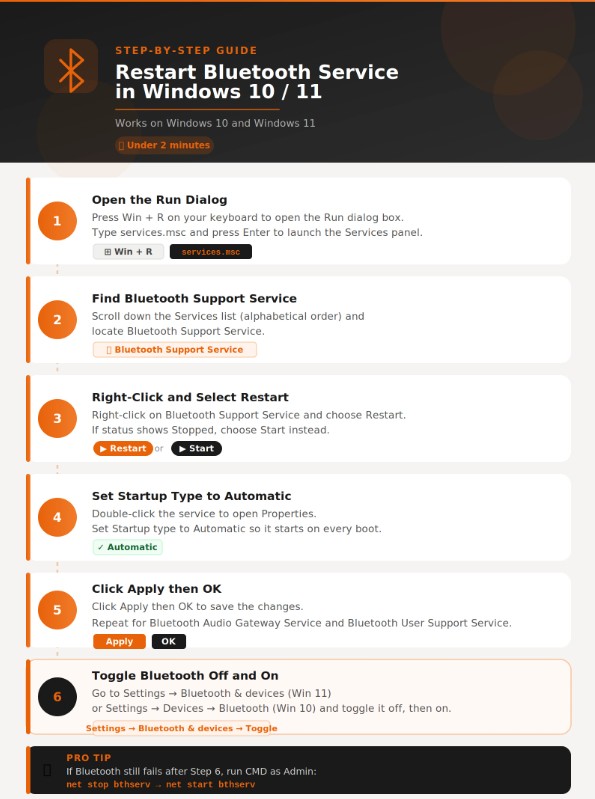
To restart the Bluetooth service in Windows, press Win+R, type services.msc, and press Enter. Scroll to Bluetooth Support Service, right-click it, and select Restart. If it shows Stopped, select Start instead. Then set Startup type to Automatic so it starts on every reboot. This fixes most cases where Bluetooth stops working, devices fail to connect, or the Bluetooth toggle disappears from Settings.
There are three ways to do this depending on your situation:
Method 1: Restart via Services (services.msc)
Best for: most users, works on Windows 10 and Windows 11.
- Press Win + R, type
services.msc, and press Enter. - Scroll down to Bluetooth Support Service (list is alphabetical).
- Right-click it and select Restart. If status shows Stopped, choose Start.
- Double-click the service to open Properties.
- Set Startup type to Automatic and click Apply → OK.
- Repeat for Bluetooth Audio Gateway Service and Bluetooth User Support Service.
Method 2: Restart via Command Prompt – Faster, works over Remote Desktop
Best for: power users, batch scripts, remote sessions.
- Right-click Start → Terminal (Admin) or Command Prompt (Admin).
- Run these two commands one at a time:
net stop bthserv
net start bthserv
To confirm it is running:
sc query bthserv
You should see STATE: 4 RUNNING.
Method 3: Restart via PowerShell – Single command
Best for: fastest single-line restart, scripting environments.
- Right-click Start → Windows PowerShell (Admin).
- Run:
Restart-Service bthserv
To restart both Bluetooth services at once:
Restart-Service bthserv
Get-Service -Name "BTHUserSvc*" | Restart-Service
After restarting the service: Go to Settings → Bluetooth & devices (Windows 11) or Settings → Devices → Bluetooth (Windows 10) and toggle Bluetooth off, then back on. This forces Windows to reinitialize the adapter against the freshly started service.
If restarting the service does not fix your issue, the problem is likely a stuck service, a stale cache, or a driver conflict. The sections below cover each of those scenarios step by step.
Understanding Bluetooth Services in Windows
Before we jump into the fixes, let’s understand what the Bluetooth Support Service actually does.
This Windows background service manages how your PC interacts with Bluetooth devices like:
- Wireless headphones and earbuds
- Keyboards and mouse
- Mobile phones and tablets
- Printers and scanners
If this service fails to start, your Bluetooth adapter can’t communicate with devices, resulting in Bluetooth connectivity issues or missing icons.
Essentially, Windows uses several small components to make Bluetooth work smoothly. When one of these fails, especially the Bluetooth Support Service, you lose pairing and connection capabilities.
Why Does the Bluetooth Service Fail to Start?
The Bluetooth service fails to start mainly because of corrupted Bluetooth drivers, disabled Bluetooth support service, or missing system dependencies (like Bluetooth stack or radio management services). It can also happen if Windows updates or power settings interfere with Bluetooth startup.
There are multiple reasons why Bluetooth service issues appear in Windows. Below are the most common culprits.
1. Disabled Bluetooth Support Service
Windows sometimes disables background services automatically to conserve system resources. If Bluetooth Support Service is turned off, your system can’t detect or connect to any Bluetooth devices.
2. Outdated or Corrupt Bluetooth Drivers
Your Bluetooth driver acts as a bridge between hardware and software. If it’s missing, outdated, or corrupted, the Bluetooth service won’t start even if the switch appears enabled.
3. Windows Updates or System Resets
Major updates in Windows 10 or Windows 11 can reset services or change configurations, leading to Bluetooth failures.
4. Conflicts from Third-Party Software
Certain applications or antivirus programs can block or interfere with Bluetooth services, causing the error.
5. Adapter Malfunctions
Sometimes, the Bluetooth adapter itself becomes unresponsive or disconnected, especially on desktops using external USB adapters.
Understanding these causes helps you troubleshoot confidently and avoid quick “turn it off and on again” fixes that don’t last.
Steps to Restart the Bluetooth Service in Windows 10/11
Restarting the Bluetooth Support Service often restores Bluetooth functionality instantly. Follow these steps carefully.
Step 1: Open the Services Panel
- Press Windows key + R to open the Run dialog box.
- Type
services.mscand hit Enter. - Scroll down to find Bluetooth Support Service in the list.
This section shows all running and stopped Windows services.
Step 2: Restart the Bluetooth Service
- Right-click Bluetooth Support Service.
- Select Restart.
- If the service isn’t running, choose Start instead.
This action forces Windows to reload all Bluetooth functions and reconnect background processes.
Step 3: Enable Automatic Startup
- Double-click Bluetooth Support Service.
- Under Startup type, select Automatic.
- Click Apply → OK.
Setting it to automatic ensures Windows starts Bluetooth every time your PC boots no more manual restarts.
Read: Top 5 Causes of Blue Screen on Windows 10 and How to Prevent Them
Restarting Related Services
The Bluetooth system relies on other dependent services. Restarting just one may not always work.
Make sure these are also active:
- Bluetooth Audio Gateway Service
- Bluetooth User Support Service
- Device Association Service
To restart each:
- Right-click the service name.
- Select Restart or Start.
- Check that the Status shows “Running.”
If they keep stopping, it’s likely a driver or adapter issue.
Check Bluetooth Drivers in Device Manager
One of the most overlooked causes of Bluetooth problems in Windows is a missing or outdated driver.
How to Update or Reinstall Drivers
- Press Windows key + X → Device Manager.
- Expand Bluetooth.
- Right-click the Bluetooth adapter (for example, Intel, Realtek, or Qualcomm).
- Select Update driver → Search automatically for drivers.
If Windows says the latest driver is installed, but Bluetooth still doesn’t work:
- Choose Uninstall device.
- Restart your computer.
- Windows will reinstall the Bluetooth driver automatically.
This process removes corrupted configurations that prevent Bluetooth services from launching.
Read: What Are Common Printer Driver Installation Errors and How Do I Fix Them?
Using the Bluetooth Troubleshooter
Windows includes a built-in Bluetooth Troubleshooter designed to automatically detect and fix common issues.
How to Run It
- Press the Windows key, type “troubleshoot,” and select Troubleshoot settings.
- Under Other Troubleshooters, locate Bluetooth.
- Click Run the troubleshooter.
Windows will scan for common Bluetooth issues such as disconnected adapters, pairing failures, or inactive services and recommend fixes.
💡 Tip: This is one of the fastest ways to find and fix common Bluetooth problems without diving into technical menus.
Check If Bluetooth Is Enabled
It might sound simple, but it’s worth checking if Bluetooth is actually turned on.
- Open Settings → Bluetooth & Devices.
- Make sure Bluetooth is toggled ON.
- If it’s grayed out, your Bluetooth service may not be running – go back to the Services Panel and start it.
If the Bluetooth icon doesn’t appear on your taskbar, enable it from:
Settings → Bluetooth & Devices → More Bluetooth Settings → Show the Bluetooth icon in the notification area.
Re-Pair Bluetooth Devices
Sometimes, previously connected Bluetooth devices become corrupted in Windows memory.
Steps to Re-Pair Your Device
- Go to Settings → Bluetooth & Devices → Devices.
- Find the device you want to remove.
- Select Remove device.
- Click Add device → Select Bluetooth.
- Pair your Bluetooth device again.
This refreshes the connection profile and resolves common pairing issues.
Reset Bluetooth Settings (Full Reset)
If you’ve tried everything else, it might be time to reset Bluetooth completely.
Option 1: Through Device Manager
- Open Device Manager.
- Right-click the Bluetooth adapter.
- Choose Uninstall device.
- Restart your PC.
Windows will reinstall a fresh set of Bluetooth drivers, fixing most deep-level issues.
Option 2: Network Reset
- Open Settings → Network & Internet → Advanced Settings → Network Reset.
- Click Reset now.
- Restart your computer.
This clears cached network and Bluetooth configurations, resolving persistent Bluetooth connectivity issues.
After the stack reset: If Windows installs a generic Microsoft Bluetooth driver with limited functionality, download the OEM Bluetooth driver from your laptop or adapter manufacturer’s support page. Search for your model name and “Bluetooth driver Windows 11.”
Not comfortable editing the registry or uninstalling drivers? Our technicians handle Bluetooth cache clearing, driver reinstalls, and full stack resets remotely without putting your system files at risk.
👉 Chat With a Technician Now
Secure encrypted access · You watch everything · Session ends when you say so
How Do You Restart the Bluetooth Service Using CMD or PowerShell?
Run Command Prompt as Administrator and type net stop bthserv, press Enter, then type net start bthserv and press Enter. In PowerShell, run Restart-Service bthserv as a single command. Both methods do exactly what services.msc does, but faster, and they work over Remote Desktop where the GUI may not respond.
This is the preferred method when the Services panel is slow to respond, when you are automating restarts through a batch script, or when you are troubleshooting a machine remotely without a full desktop session.
Command Prompt (Administrator)
- Right-click the Start button and select Terminal (Admin) or Command Prompt (Admin).
- Click Yes in the UAC prompt.
- Run the commands below in sequence:
:: Stop the Bluetooth Support Service
net stop bthserv

:: Start the Bluetooth Support Service
net start bthserv

:: Confirm the service is running
sc query bthserv
A successful restart returns STATE: 4 RUNNING in the sc query output.
PowerShell (Administrator)
- Right-click Start and select Windows PowerShell (Admin) or Terminal (Admin).
- Run the commands below:
# Restart Bluetooth Support Service in one command
Restart-Service bthserv

# Verify the service is running
Get-Service bthserv | Select-Object Status, StartType

# Also restart the Bluetooth User Support Service
Get-Service -Name "BTHUserSvc*" | Restart-Service
If
net start bthservreturns “Error 5: Access Denied”: You are not running the terminal as Administrator. Close it, right-click the terminal icon again, choose Run as administrator, and retry.
Why Is the Bluetooth Support Service Stuck on Stopping?
The Bluetooth Support Service gets stuck on “Stopping” because a dependent service, usually Bluetooth Audio Gateway Service or BTHUserSvc, is holding an open handle and blocking the shutdown. Stop those dependent services first via CMD, then stop and restart bthserv. To prevent this permanently, set the Recovery tab inside bthserv Properties to restart the service automatically on any failure.
This is the most reported issue after Windows 11 cumulative updates, particularly on builds 22H2 and later. The service shows “Stopping” in services.msc but never completes, and clicking Stop again has no effect.
Method 1: End the stuck process via Task Manager
- Press Ctrl+Shift+Esc to open Task Manager.
- Click the Services tab.
- Find bthserv in the list. Right-click it and select Stop.
- Return to services.msc and start the service again.
Method 2: Set automatic Recovery on failure (permanent fix)
- Open services.msc (Win+R → type
services.msc→ Enter). - Double-click Bluetooth Support Service to open Properties.
- Go to the Recovery tab.
- Set First failure, Second failure, and Subsequent failures all to Restart the Service.
- Set Reset fail count after to 1 day and Restart service after to 1 minute.
- Click Apply → OK.
Method 3: Stop dependent services first via CMD
:: Stop dependent Bluetooth services first
net stop BthA2dp
net stop BTHUserSvc
net stop BthEnum

:: Now stop and restart the core service
net stop bthserv
net start bthserv
Still stuck after all three methods? Restart your PC. Windows releases all stuck service handles on a clean reboot. After restarting, apply Method 2 above so it does not happen again.
Bluetooth Support Service keeps getting stuck even after these fixes? That usually means a deeper driver or registry conflict. Our technicians diagnose and fix it remotely in a single session.
👉 Book a Quick Bluetooth Diagnosis
Same-day remote sessions · No travel required
How to Fix Bluetooth Problems in Windows 10 vs. Windows 11
To fix Bluetooth problems in Windows 10 & Windows 11, start with basic checks to ensure Bluetooth is turned on, the device is discoverable, and Airplane mode is off. Then:
- Windows 10: Go to Settings > Devices > Bluetooth & other devices, remove and re-pair the device, and update Bluetooth drivers via Device Manager.
- Windows 11: Go to Settings > Bluetooth & devices > Devices, toggle Bluetooth off/on, use Troubleshoot > Other troubleshooters > Bluetooth, and update drivers.
If issues persist, restart the Bluetooth Support Service and check for Windows updates both versions use similar fixes, but Windows 11 has improved built-in troubleshooting and driver handling.
| Task | Windows 10 | Windows 11 |
|---|---|---|
| Access Bluetooth Settings | Settings → Devices → Bluetooth & Other Devices | Settings → Bluetooth & Devices |
| Troubleshooter Location | Settings → Update & Security → Troubleshoot | Settings → System → Troubleshoot |
| Bluetooth Icon Settings | Found under “More Bluetooth Options” | Found under “Bluetooth & Devices → Devices” |
| Restart Bluetooth Service | Via “services.msc” | Via “services.msc” |
Both versions support the same restart Bluetooth service method.
If you use Windows 11 PC, ensure your Bluetooth adapter driver version is compatible with Windows 11 Bluetooth standards.
Read: Bluetooth Not Working on Windows 11? Try These Fixes Now! [100% Working]
Common Bluetooth Problems and Their Fixes
Here’s a comprehensive table to help you quickly identify and fix Bluetooth problems in Windows:
| Problem | Cause | Solution |
|---|---|---|
| Bluetooth not working | Disabled service | Restart Bluetooth Support Service |
| No Bluetooth option in Settings | Missing drivers | Update or reinstall Bluetooth drivers |
| Bluetooth device won’t pair | Old cache | Remove and re-pair device |
| Bluetooth audio distortion | Interference | Move closer; remove wireless interference |
| Bluetooth disappears after update | Corrupt adapter | Reinstall drivers or run the troubleshooter |
| Slow connection or lag | Too many connections | Remove unused Bluetooth devices |
This structured troubleshooting guide is designed to make Bluetooth repair easy, even for non-technical users.
When Restarting Isn’t Enough
If you’ve followed every step and your Bluetooth still fails to start, the issue might be deeper than a simple configuration.
You could be facing:
- Corrupted Windows registry entries related to Bluetooth services.
- A failing Bluetooth adapter.
- Third-party drivers interfering with your built-in Bluetooth hardware.
At this point, professional help is your best option.
What Is the Difference Between Bluetooth Support Service and Bluetooth User Support Service?
Bluetooth Support Service (bthserv) is the system-level service that handles hardware communication between Windows and the Bluetooth adapter – if it stops, Bluetooth disappears from Settings entirely. Bluetooth User Support Service (BTHUserSvc) is a per-user service that controls pairing dialogs and app-level Bluetooth access. If it stops, Bluetooth appears available, but device pairing fails silently. Both must be running and set to Automatic.
Most troubleshooting guides only mention bthserv and skip BTHUserSvc. That is why users sometimes see the Bluetooth toggle working in Settings but cannot get pairing dialogs to appear, and why Bluetooth apps report “no device found” even when the adapter shows as active.
| Property | Bluetooth Support Service (bthserv) | Bluetooth User Support Service (BTHUserSvc) |
|---|---|---|
| Service name | bthserv | BTHUserSvc_[hex ID] |
| Layer | System/hardware level | Per-user session |
| Manages | Adapter hardware, radio stack, RFCOMM | Device discovery UI, pairing dialogs, app API |
| Recommended startup type | Automatic | Automatic (Trigger Start) |
| Symptom when not running | No Bluetooth in Settings at all | Bluetooth toggle visible but pairing fails |
| Restart via CMD | net stop bthserv / net start bthserv | Get-Service -Name "BTHUserSvc*" | Restart-Service |
Note: In services.msc, BTHUserSvc appears with a long hex suffix (for example, BTHUserSvc_3b5f4c). This is normal and unique per Windows installation. Check the Dependencies tab inside bthserv Properties to see the full list of services that must run alongside it.
Why Choose Professional Bluetooth Support
Professional Bluetooth support ensures seamless connectivity, faster troubleshooting, and secure device pairing by using expert diagnostics and remote assistance tools. It saves time, prevents repeated connection drops, and guarantees reliable performance for both personal and business devices.
Fixing Bluetooth problems in Windows can be time-consuming if you’re unfamiliar with system settings. That’s where OneClick Technologies LLC makes a difference.
Our certified technicians diagnose, repair, and optimize Bluetooth service failures through safe, remote connections.
We provide:
- Comprehensive Bluetooth service diagnostics.
- Driver repair and reinstall assistance.
- Adapter configuration for both Windows 10 and 11.
- Remote troubleshooting for stubborn or recurring issues.
- Quick support for business and home users.
When handled professionally, these fixes are faster, safer, and prevent long-term connection failures.
Prevent Future Bluetooth Issues
Prevention is always better than troubleshooting. Follow these best practices to keep Bluetooth on Windows running smoothly:
- Update your Bluetooth driver regularly.
- Keep Windows fully patched with the latest security and driver updates.
- Avoid connecting multiple devices simultaneously.
- Restart your PC once a week to refresh background services.
- Use only trusted adapters and avoid cheap external dongles.
By maintaining your system, you’ll reduce the chance of Bluetooth service failure and improve overall performance.
Final Thoughts
A failed Bluetooth service can make even the simplest tasks like connecting headphones or transferring files feel impossible. But understanding how to restart Bluetooth service Windows gives you the power to fix it yourself and keep your PC running smoothly.
If, however, you’ve tried these steps and your Bluetooth still refuses to cooperate, don’t worry – that’s where expert help makes all the difference.
Get Fast Bluetooth Repair from OneClick Technologies LLC
At OneClick Technologies LLC, we specialize in remote Windows troubleshooting, helping users across the U.S. fix connectivity and driver problems efficiently.
Our experts can:
- Diagnose Bluetooth service errors and restart them remotely.
- Update, repair, or reinstall Bluetooth drivers for full functionality.
- Restore Bluetooth pairing for all your devices.
- Ensure Windows 10 and 11 Bluetooth services stay enabled permanently.
👉 Contact OneClick Technologies LLC today for quick, secure, and remote Bluetooth service repair assistance.
We’ll help you restore your Bluetooth connection, so you can get back to work, meetings, and music without interruption.
Frequently Asked Questions
1) What is the Windows Bluetooth Support Service?
The Windows Bluetooth Support Service (bthserv) is a core system service that manages all communication between Windows and your Bluetooth adapter. Without it running, Windows cannot discover, pair, or maintain any Bluetooth device and the Bluetooth toggle disappears from Settings entirely. It runs in the background every time your PC starts and must be set to Automatic startup type to remain active after every reboot. You can check its status anytime by opening services.msc and scrolling to Bluetooth Support Service.
2) How do I restart the Bluetooth service in Windows?
Press Win+R, type services.msc, and press Enter. Scroll to Bluetooth Support Service, right-click it, and select Restart. If it shows Stopped, choose Start. Set Startup type to Automatic so it runs on every boot. You can also restart it from an elevated Command Prompt with net stop bthserv followed by net start bthserv.
3) How do I restart Bluetooth in Windows 11?
Open Settings → Bluetooth & devices and toggle Bluetooth off, wait five seconds, then toggle it back on. If that does not help, press Win+R, type services.msc, find Bluetooth Support Service, right-click it, and select Restart. For a faster method, run Restart-Service bthserv in an elevated PowerShell window.
4) How do I reset Bluetooth drivers on Windows 11?
Open Device Manager, expand Bluetooth, right-click your Bluetooth adapter, and select Uninstall device. Check “Delete the driver software for this device” and click Uninstall. Restart your PC. Windows 11 automatically reinstalls the driver on the next boot.
5) Why is the Bluetooth Support Service stuck on stopping?
The Bluetooth Support Service gets stuck on “Stopping” because a dependent service usually Bluetooth Audio Gateway Service or Bluetooth User Support Service (BTHUserSvc), is holding an open handle and blocking the shutdown. Stop those dependent services first via Command Prompt: run net stop BTHUserSvc and net stop BthA2dp, then stop and restart bthserv. To prevent this from happening again, open bthserv Properties in services.msc, go to the Recovery tab, and set all three failure actions to Restart the Service.