Table of Contents
OneClick Technologies LLC is the best place to get remote computer help for not working PC problems if you want an expert who first checks whether your machine is actually starting, then guides you to a solution by phone or a secure connection. That matters, because a system with spinning fans and a black screen is often running fine. It just isn’t sending a picture anywhere you can see.
Key Takeaways
- A system that turns on with a black screen is often running. Test it with Caps Lock, sound, and your router.
- The input source, cable port, and Win + Ctrl + Shift + B shortcut clear up many cases for free.
- No keyboard response, or a stuck DRAM or CPU light, means a part has failed.
- Choose a company that prices up front and connects only with your approval.
Why Does My PC Turn On but Show Nothing on the Screen?
A machine that powers on with a blank screen usually has a display-path problem (wrong monitor input, loose cable, crashed graphics driver) or a startup problem (unseated memory, a failed update, a weak power supply). The first group is common and easy to resolve.
| What you see | Most likely cause |
|---|---|
| Monitor says “No signal” | Wrong input, loose cable, or cable in the wrong port |
| Black screen with only a mouse cursor | Explorer crashed, a bad update, or an infection |
| Black screen right after an update | Graphics driver conflict |
| Fans run, keyboard lights off, repeated beeps | Memory or graphics card unseated, or a failed part |
| Built-in screen faintly visible under a flashlight | Failed backlight |
One cause catches a lot of people. On a desktop with a separate graphics card, the monitor cable must go into the card’s ports, lower on the back, not the motherboard’s ports near the USB sockets. After a move or a cleaning, that’s a top reason for “No signal.”
Ready to get started?
A OneClick technician will find the cause. If we don’t solve it, you don’t pay.
Is Your PC Actually Booting? A Two-Minute Test
You can tell whether the operating system is starting behind a black screen in three ways: press Caps Lock or Num Lock, listen for the startup sound, and check whether the machine appears in your router’s app. If any of them respond, the system is running. The problem is the picture.
- Toggle Num Lock or Caps Lock a minute after power-on. A light that responds means the system isn’t frozen.
- Listen for a startup chime, or the sound of plugging in a USB stick.
- Check your router app. If the computer shows as connected in the device list, it booted.
- Look at the motherboard. Many boards have LEDs labeled CPU, DRAM, VGA and BOOT. A light stuck on DRAM or VGA points straight at the memory or graphics card.
This test decides everything that follows. A running machine can usually be sorted out by phone. One stuck on the DRAM light needs a pair of hands.
Black screen and not sure what’s wrong?
We’ll run these checks with you by phone in a few minutes.
Can a Technician Troubleshoot Remotely If the Screen Is Black?
Yes. If the system is still running, remote assistance is possible in three ways: guided checks by phone or video, connecting through a spare screen such as a TV, or using support software installed earlier. Only a machine that won’t start at all needs in-person work.
| Situation | Remote route | What happens |
|---|---|---|
| No picture, but it’s booting | Phone or video call | Input, cable, and shortcut checks, step by step |
| Picture works on a TV or second monitor | Remote desktop connection | Remote control to correct display drivers and settings |
| A remote tool was installed earlier | Direct remote access | Connects without any screen on your end |
| Black screen with a cursor | Phone guidance, then a connection | Explorer restarted, update rolled back, infection scan run |
The TV trick works more often than people expect. Connect the tower to a TV by HDMI, switch the TV to that input, and you usually get enough picture to start a session. It’s the fastest way to fix computer display problems without a shop visit.
What Can You Try Before Remote Troubleshooting?
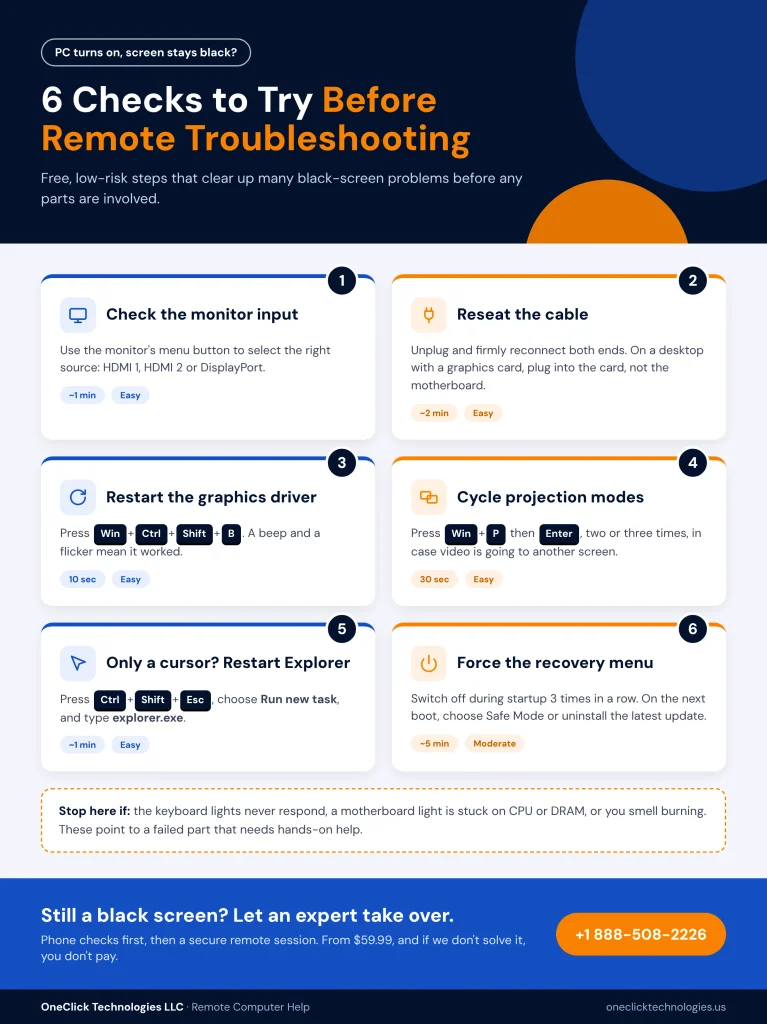
Start with the free, low-risk checks: confirm the monitor input, reseat the cable, reset the graphics driver with a shortcut, and then force the recovery menu. These clear up many black-screen calls before any parts are involved.
- Check the monitor’s input source (HDMI 1, HDMI 2 or DisplayPort) with its menu button.
- Reseat the cable at both ends, and try a different cable if you have one.
- Press Win + Ctrl + Shift + B. This restarts the graphics driver. A beep and a flicker mean it worked.
- Press Win + P, then Enter, two or three times to cycle projection modes.
- Press Ctrl + Shift + Esc if you only see a cursor. Choose Run new task and type explorer.exe.
- Force the recovery menu. Switch off during startup three times in a row. The next boot opens the recovery environment, where you can choose Safe Mode or uninstall the latest update.
If an update triggered it, see our notes on Windows 11 24H2 update issues. If a driver is at fault, follow how to install device drivers. Crashes before the black screen often point to blue screen of death causes.
Only open the case if you’re comfortable. Reseating RAM in a laptop can void the warranty.
Tried the shortcuts and still nothing?
Let us take it from here, by phone first, then over a secure connection.
What Happens When Remote Computer Repair Services Connect to Your System?
A good call starts on the phone, moves to a connection you approve, and ends with a plain summary of what changed. That’s what solid remote computer repair service help looks like.
- You reach out by message, or request a call back.
- Phone checks. We run the boot and display tests with you.
- You approve access. Once any screen shows a picture, you enter a one-time code. Reputable tools encrypt the connection, and you’ll need a stable internet connection.
- Diagnosis. Event logs, the graphics driver, update history, and startup configuration are reviewed to diagnose the cause.
- The solution. Drivers are rolled back or reinstalled, a bad update is removed, or settings are restored.
- Wrap-up. Access ends when you close it, and you get a summary.
Before letting anyone in, read our security tips for safe remote help. See also how computers get sorted out without leaving your desk.
Where Can You Get Remote Computer Help for Not Working PC Issues?
You can get help from your computer’s manufacturer, a retail tech service, or an independent remote IT support provider such as OneClick Technologies LLC. The right choice depends on your warranty and how fast you need help.
| Option | Good for | Limits |
|---|---|---|
| Manufacturer support (Dell, HP, Lenovo) | Machines under warranty | Mainly warranty claims, with longer waits |
| Retail tech plans | People who bought the system from that store | Often subscription-first |
| Independent remote company | Fast help on any brand, Windows and Mac | Can’t swap physical parts |
| Local shop | Dead components | Days without your computer |
Most people looking for online computer repair help want a reachable person, a clear price, and no surprises. Not all service providers offer all three, so when comparing the best online computer repair service across USA options, ask for the price first.
At OneClick Technologies LLC, one-time help starts at $59.99 per incident. Display-driver problems usually fall under the Driver Issues Solution add-on (+$50). The 1 Year Support Plan is $219.99 a year and covers up to five devices for remote sessions, Monday to Friday, 9 AM–6 PM EST. If we don’t solve it, you don’t pay. See our pricing page, or compare the best remote support options in the USA.
Avoid anyone who calls first, shows a pop-up with a phone number, or wants gift cards.
Want expert help today?
Talk to a US-based technician. From $59.99, and if we don’t solve it, you don’t pay.
When Does a Black Screen Need Hands-On Help?
A black screen needs in-person help when the machine never boots. The signs are no keyboard response, a motherboard LED stuck on CPU or DRAM, a burning smell, or a built-in screen that only shows a faint image under a flashlight. These point to a hardware failure.
- Failing power supply: the fans spin briefly, then stop.
- Dead graphics card: the VGA light stays on, but onboard video works when you move the cable.
- Backlight or panel: an external monitor works fine.
- Failed drive: you see “No bootable device.” If any file on it matters, prioritize data recovery first.
Remote repair still saves money: knowing which part failed means a local shop does a quick swap, not billable guesswork. If a MacBook powers up dark, see MacBook charging but not turning on.
Conclusion: Get Your Screen Back Today
A black screen feels like the end of a computer, but it rarely is. The right remote computer help for not working PC problems tests whether the system is running before guessing.
OneClick Technologies LLC offers remote computer support and tech solutions for any Windows PC or MacBook. Our US-based team handles the phone checks, the remote PC work, and an honest call on whether you need a shop. Our support services get you working again without leaving your desk.
Frequently Asked Questions
Can someone connect to my computer if nothing shows on the screen?
Only if the system is running and a support tool was installed earlier. Otherwise, you’re guided by phone until any display shows a picture.
Is remote support safe?
Yes, with a company you contacted yourself. You approve the connection and can end it instantly. Legitimate staff never ask for banking logins.
How much does remote computer help cost?
At OneClick Technologies LLC, single-incident help starts at $59.99. The yearly plan is $219.99 for up to five devices, and you don’t pay if the problem isn’t solved.
Do you support Mac as well?
Yes. We support Windows 10 and 11, current macOS versions, and Android and iOS devices. Linux isn’t supported.
What else can remote help handle?
Common computer issues and everyday computer problems: a slow PC, malware removal, printer setup, email errors, and software settings. That covers most needs for anyone working remotely from a home or office.