Table of Contents
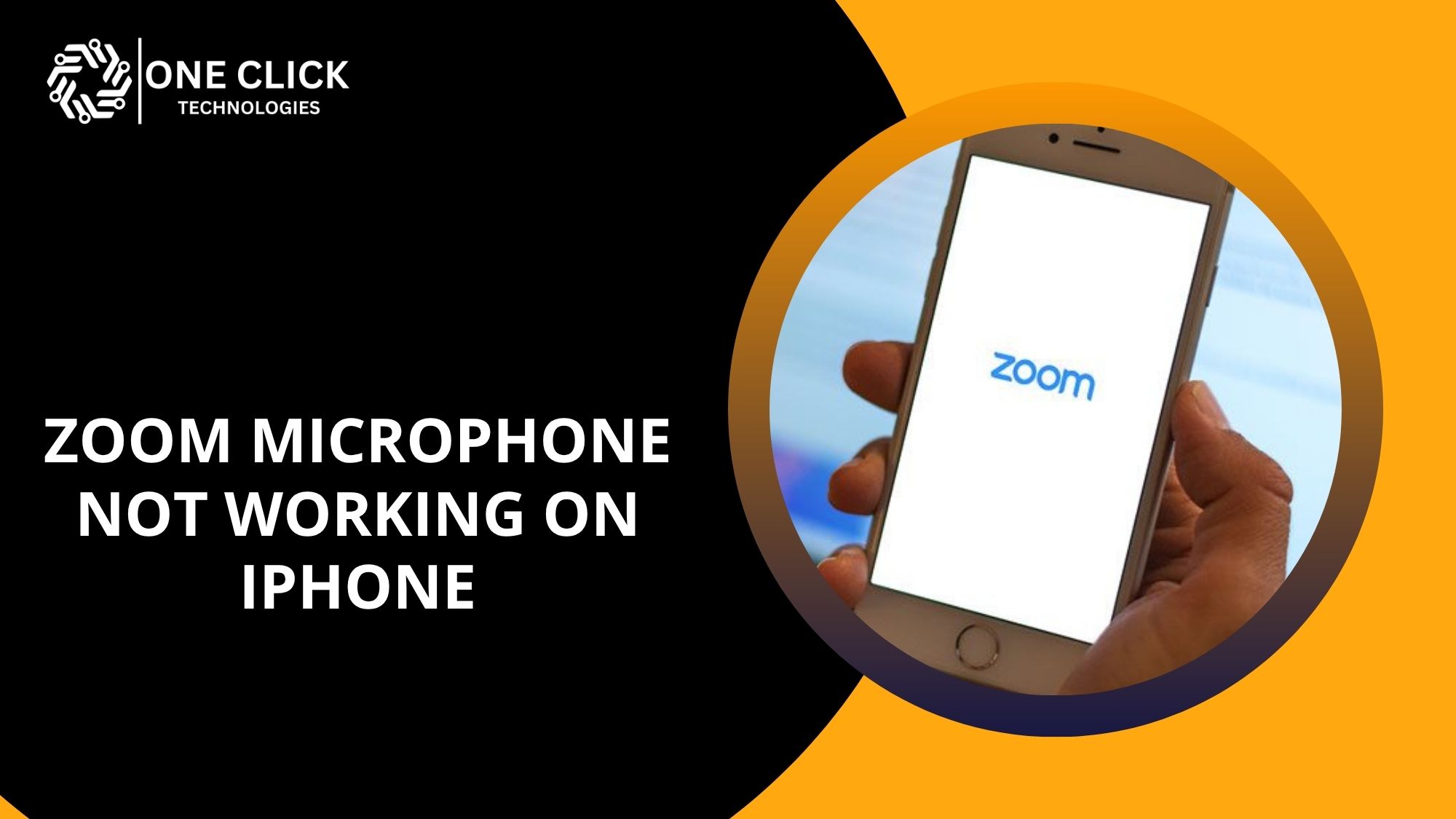
Joining an important Zoom call only to realize nobody can hear you can become frustrating very quickly. Many iPhone users experience situations where the Zoom microphone suddenly stops responding during a meeting, even though the phone itself seems completely fine. Sometimes the app stays muted, sometimes the audio fails to connect properly, and in other cases, Zoom simply cannot detect the microphone at all.
Most of these microphone issues are not caused by hardware damage. Problems related to permissions, incorrect audio settings, Bluetooth conflicts, muted meeting controls, or temporary iOS glitches are far more common. A simple change inside the Zoom app or iPhone settings can often restore your audio within minutes.
This guide explains the real reasons behind zoom microphone not working on iphone, how to identify the exact cause, and the safest step-by-step fixes to get your Zoom audio working properly again before it affects another important call.
Why Is My Zoom Microphone Not Working on iPhone?
If your Zoom microphone is not working on an iPhone, the most common reasons are disabled microphone permissions, muted meeting controls, incorrect Zoom audio settings, Bluetooth conflicts, or iOS privacy restrictions blocking Zoom from using the mic.
Many users immediately assume their iPhone microphone is damaged, but most Zoom audio problems are software-related rather than hardware-related.
Common reasons why the Zoom microphone stops working
1. Microphone permission is disabled in iPhone settings
If Zoom does not have permission to use the microphone, the app cannot capture your voice during a meeting.
This often happens after:
- Installing Zoom for the first time
- Updating iOS
- Resetting privacy settings
- Denying microphone access accidentally
2. You joined the Zoom meeting while muted
Many users unknowingly stay muted during meetings because Zoom automatically mutes participants depending on meeting settings.
This can create confusion where the microphone appears broken even though it is functioning correctly.
3. Incorrect Zoom audio setting selected
The Zoom app may be connected to the wrong audio source.
This usually happens when:
- Bluetooth devices are connected
- Audio routing changes automatically
- The wrong speaker or microphone source is selected
4. Another app is interfering with audio
Some apps continue using the microphone in the background.
Examples include:
- Voice recording apps
- Phone calls
- Other communication apps
These can block Zoom from using the microphone properly.
5. Temporary iOS system glitches
Occasionally, iOS experiences temporary audio bugs that interrupt Zoom audio functionality.
These issues can affect:
- The speaker and the microphone
- Audio routing
- Permission handling
Understanding the exact cause helps you troubleshoot speaker or microphone issues much faster.
How Do I Allow Zoom to Access My Microphone on iPhone?
To allow Zoom microphone access on iPhone, open iPhone settings, select Zoom, and enable microphone permissions.
This is one of the most important fixes for a microphone not working during a Zoom meeting.
Step-by-step instructions to enable microphone access
Step 1: Open iPhone settings
- Unlock your iPhone
- Open the Settings app
- Scroll until you find the Zoom app
Step 2: Enable microphone access
Inside Zoom settings:
- Turn ON the microphone permission
- Ensure Zoom has full access to your microphone
Step 3: Restart Zoom completely
After enabling access:
- Close the Zoom app fully
- Reopen it
- Try to join a meeting again
Why this permission matters
Without permission:
- Zoom cannot capture voice input
- The mic appears inactive
- Users experience microphone issues during meetings
This is one of the leading causes of Zoom audio failure on iPhone.
Did You Accidentally Join the Meeting Muted?
Many users think the microphone is broken when they are actually muted inside the Zoom meeting.
Zoom often mutes users automatically during meetings, especially in large group calls or webinars.
How to check if you are muted
Look at the microphone icon
During the meeting:
- Check the bottom-left corner of the meeting screen
- Find the microphone icon in the meeting controls toolbar
If the icon has a slash through it, your microphone is muted.
Tap the icon to unmute
- Tap the icon to unmute
- Wait a few seconds for Zoom to reconnect audio
What if the microphone still does not work?
Sometimes:
- The host has control over participant microphones
- You may need to ask to be unmuted
This often happens in webinars or managed business meetings.
Checking the mute status solves many situations where users think the mic is not working has failed completely.
Did You Join the Meeting Without Audio Enabled?
If you do not select “Join Audio,” Zoom cannot use your microphone or speaker during the call.
This issue is extremely common for mobile users.
How to enable meeting audio correctly
During the Zoom meeting
- Tap the screen once to display controls
- Select Join Audio
- Choose “Call using Internet Audio”
Why this is important
Without joining audio:
- The microphone will not activate
- The speaker may stop functioning
- Zoom appears silent even though the meeting is active
Many first-time users mistake this for a hardware failure.
Are Your Zoom Audio Settings Configured Correctly?
Incorrect Zoom audio settings can prevent the app from using your microphone properly, even when permissions are enabled.
How to review Zoom audio settings
Open Zoom settings
- Launch the Zoom mobile app
- Tap your profile icon
- Open Settings
Check audio configuration
Review:
- Audio connection preferences
- Automatic audio connection settings
- Speaker routing options
Make sure your microphone is selected
If Bluetooth accessories are connected, Zoom may switch audio sources automatically.
Check whether:
- The iPhone microphone is active
- Bluetooth audio is disabled if not needed
- The correct audio source is selected
Proper audio settings prevent repeated audio interruptions during meetings.
Can Bluetooth Devices Cause Zoom Audio Problems?
Yes, Bluetooth headphones or speakers can redirect Zoom audio and prevent the iPhone microphone from functioning correctly.
Bluetooth routing is one of the most overlooked causes of Zoom microphone failure.
Common Bluetooth-related problems
Audio connects to another device
Your iPhone may send audio to:
- Wireless earbuds
- Car Bluetooth systems
- Smart speakers
Zoom selects the wrong microphone source
When Bluetooth is connected, Zoom may prioritize that device automatically.
How to fix Bluetooth audio conflicts
Turn Bluetooth off temporarily
- Open iPhone settings
- Disable Bluetooth
- Rejoin the Zoom meeting
Remove inactive devices
Disconnect old Bluetooth devices that are no longer used.
This solves many hidden speaker issues and microphone routing conflicts.
How to Test Your Audio Before a Zoom Meeting
Zoom offers built-in audio testing tools that help you check your microphone and speaker before joining a meeting.
Testing your audio before important calls helps avoid embarrassing interruptions.
How to test your audio
Inside Zoom settings
- Open Zoom
- Navigate to audio options
- Start a test meeting
What to verify during the test
Microphone check
- Speak normally
- Confirm the app detects your voice
- Verify the mic responds correctly
Speaker check
- Listen to the playback audio
- Increase the volume if necessary
Running a quick mic test before meetings ensures the system works correctly.
Why Does Zoom Work on Desktop but Not on iPhone?
Zoom may work on a desktop but fail on an iPhone because iOS handles permissions, audio routing, and app privacy differently.
Why does mobile Zoom behave differently
iOS privacy system is stricter
Compared to desktop systems like:
- Windows 10
- macOS
iPhone privacy controls are more restrictive.
Mobile apps handle audio differently
The Zoom mobile app relies heavily on iOS permission systems.
Background apps interfere more easily
Mobile operating systems manage microphone access differently from desktop platforms.
This explains why Zoom may work perfectly on a desktop while failing on mobile.
Why Zoom Microphone Works in Other Apps but Not on iPhone Zoom Meetings
If your microphone works in other apps but not in Zoom, the issue is usually caused by Zoom-specific audio settings, meeting permissions, or incorrect audio routing inside the Zoom app.
This situation confuses many users because the iPhone microphone appears to function normally in:
- Voice Memos
- WhatsApp calls
- FaceTime
- Regular phone calls
Yet the microphone suddenly stops working in Zoom.
Why does this happen on Zoom specifically
Zoom may be using the wrong audio source
The Zoom app can automatically switch audio sources when:
- Bluetooth devices are connected
- Wireless earbuds are paired
- External microphones were previously used
Zoom meeting permissions may not refresh correctly
Sometimes iOS grants microphone access, but Zoom fails to initialize the permission during the meeting.
The meeting audio was not connected properly
If users do not tap Join Audio, Zoom cannot activate the microphone correctly.
How to fix this issue quickly
Step 1: Test the microphone outside Zoom
Check if your microphone works in:
- Voice Memo app
- Phone calls
- Siri
If it works elsewhere, the issue is likely Zoom-related.
Step 2: Reset Zoom audio connection
- Leave the meeting
- Reopen Zoom
- Rejoin the meeting
- Tap Join Audio
Step 3: Recheck Zoom microphone permissions
- Open iPhone settings
- Find Zoom
- Ensure microphone access is enabled
Zoom Audio Problems vs iPhone Hardware Problems – How to Tell the Difference
If your microphone fails only in Zoom, the issue is usually software-related, but if it fails in all apps, the problem may be hardware-related.
Many users panic and assume their iPhone microphone is damaged when the actual problem is only related to Zoom settings or permissions.
Quick comparison table
| Problem Type | Common Symptoms | Likely Cause | Recommended Fix |
|---|---|---|---|
| Zoom audio issue | Mic fails only in Zoom | App settings or permissions | Reset Zoom audio settings |
| iPhone hardware issue | Mic fails everywhere | Physical microphone problem | Hardware diagnosis |
| Bluetooth conflict | Audio routes incorrectly | Wireless device interference | Disconnect Bluetooth |
| Network-related issue | Choppy or delayed voice | Weak internet connection | Improve Wi-Fi stability |
Signs the issue is Zoom-related
Your microphone works in:
- Voice recordings
- Phone calls
- Other meeting apps
But fails in:
- Zoom meetings only
- Zoom audio tests
- Zoom mobile app calls
This usually indicates:
- Incorrect audio settings
- Permission conflicts
- Zoom app bugs
Signs the issue may be hardware-related
Your microphone fails everywhere
Examples include:
- Siri cannot hear you
- Voice Memos record silence
- Calls sound muffled
You notice physical symptoms
- Cracking audio
- Distorted sound
- No microphone input at all
This may require professional inspection.
Could the Zoom App Itself Be Causing the Problem?
Yes, outdated or corrupted Zoom app files can prevent the microphone from functioning correctly.
Signs the Zoom app may be causing audio issues
Common symptoms
- The microphone stopped working after the update
- Audio cuts in and out
- Zoom crashes during meetings
- Audio works in other apps, but not Zoom
How to fix Zoom app issues
Update the Zoom app
- Open App Store
- Search for Zoom
- Install the latest updates
Reinstall Zoom completely
If updates do not help:
- Delete the Zoom app
- Restart your iPhone
- Install Zoom again
This refreshes app permissions and clears corrupted files.
How to Troubleshoot Speaker or Microphone Issues on Zoom Mobile
The best way to troubleshoot Zoom mobile audio issues is to isolate whether the problem is caused by permissions, settings, hardware, or network problems.
Step-by-step troubleshooting checklist
Step 1: Check microphone permissions
Ensure Zoom can:
- Access the microphone
- Use audio during meetings
Step 2: Verify meeting controls
Confirm:
- You are not muted
- The audio icon in the meeting is active
Step 3: Restart Zoom and iPhone
Restarting clears temporary glitches affecting audio systems.
Step 4: Test the microphone outside Zoom
Use:
- Voice Memo app
- Phone calls
- Another communication app
This confirms whether the hardware itself works.
Step 5: Update iOS and Zoom
Install the latest updates to avoid compatibility issues.
These troubleshooting steps solve most Zoom audio failures on iPhone.
Can a weak Internet affect Zoom Audio on iPhone?
Yes, an unstable internet can interrupt Zoom audio and make it seem like the microphone is not working.
Signs of internet-related Zoom audio problems
Common symptoms
- Delayed audio
- Choppy voice transmission
- Frozen meeting screen
- Audio cutting in and out
How to improve Zoom connection quality
Use stable Wi-Fi
Avoid switching between mobile data and Wi-Fi during meetings.
Restart the router
This often improves bandwidth stability.
Move closer to the router
Weak signal strength affects Zoom audio quality significantly.
Poor internet connections frequently create false microphone problems.
Best Practices to Prevent Zoom Microphone Problems on iPhone
Regularly updating Zoom, checking permissions, and testing your audio before meetings can prevent most Zoom microphone issues on iPhone.
Preventing audio problems is much easier than troubleshooting them during an important meeting.
Simple habits that prevent Zoom microphone failures
Keep Zoom updated
Always use the latest version of the Zoom app because updates often fix:
- Audio bugs
- Permission issues
- iOS compatibility problems
Update iOS regularly
Outdated iOS versions can create:
- Permission conflicts
- Audio routing bugs
- App stability issues
Test your audio before meetings
Before every important Zoom meeting:
- Start a test meeting
- Verify your microphone
- Confirm speaker output
Avoid connecting unnecessary Bluetooth devices
Bluetooth accessories can confuse Zoom’s audio routing system.
Disconnect devices you are not actively using.
Restart Zoom occasionally
Long-running apps sometimes develop temporary glitches affecting:
- Microphone detection
- Speaker routing
- Audio stability
Why prevention matters
Preventive maintenance helps:
- Reduce meeting interruptions
- Improve Zoom audio quality
- Avoid last-minute troubleshooting stress
- Ensure stable communication during work meetings
Final Thoughts
Experiencing zoom microphone not working on iphone can be frustrating during important virtual meetings, especially when you cannot communicate clearly with colleagues, clients, teachers, or family members. Fortunately, most Zoom microphone issues are caused by permissions, muted controls, Bluetooth conflicts, or temporary app glitches rather than serious hardware damage.
By carefully checking your audio settings, verifying permissions, testing your audio before meetings, and updating the Zoom app regularly, you can avoid most microphone-related interruptions.
Following a structured troubleshooting process step by step is the safest and fastest way to restore your Zoom audio and keep your meetings running smoothly.
Need Fast Help Fixing Zoom Audio Problems on iPhone?
If your zoom microphone not working on iphone even after trying all these fixes, deeper troubleshooting may be necessary. Instead of wasting time changing random settings during an important meeting, professional remote support can help identify the exact issue quickly and safely.
OneClick Technologies LLC provides professional remote support for Zoom audio issues, microphone problems, and mobile app troubleshooting. Their technicians can diagnose hidden permission conflicts, Bluetooth audio issues, and app-level settings problems remotely.
Get fast expert help restoring your Zoom audio, fixing microphone problems, and making sure your next meeting runs smoothly without interruptions.