Table of Contents
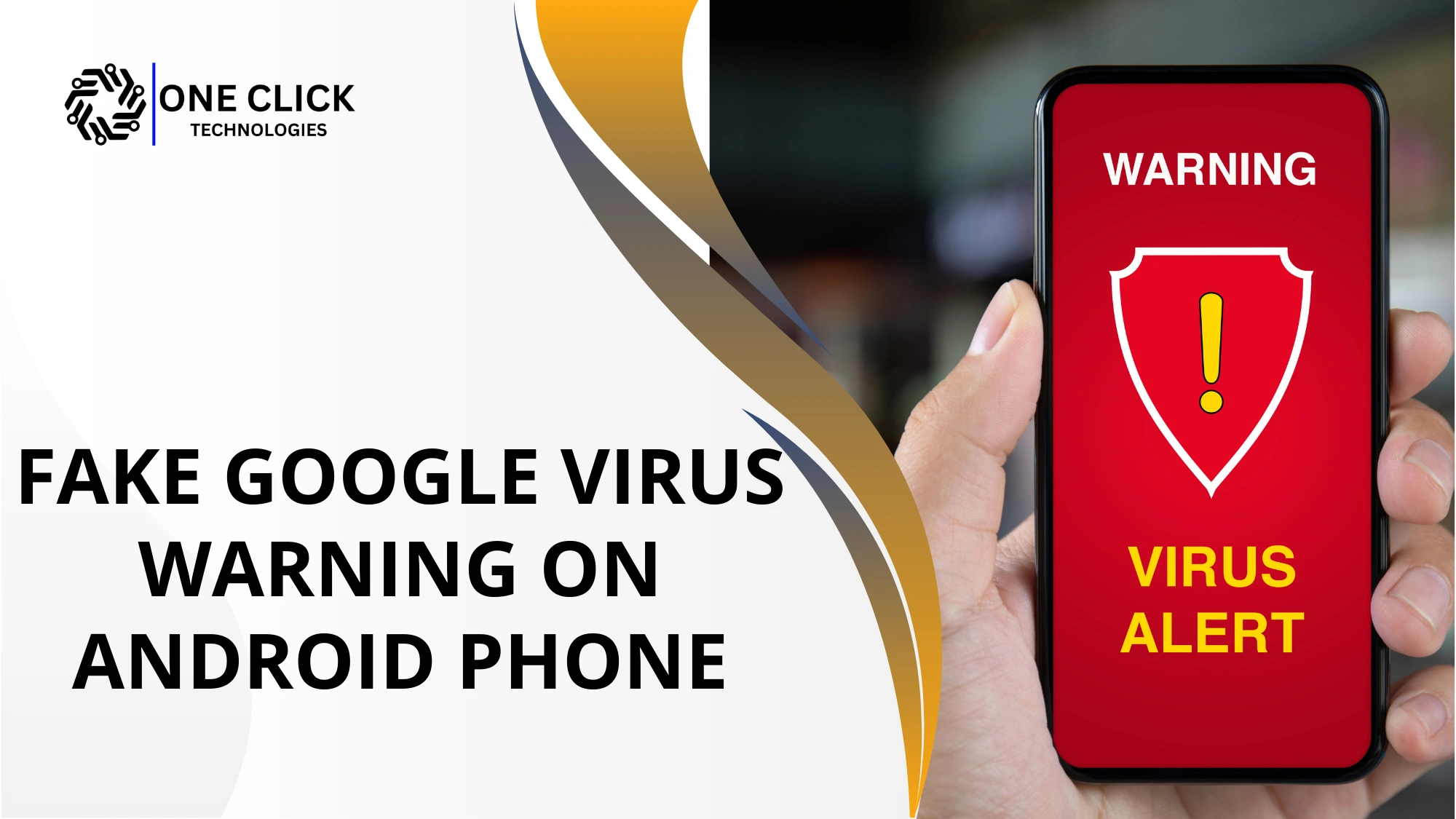
If you are seeing a fake google virus warning on android phone, the most important thing you can do right now is stop and do nothing for a moment. These warnings are designed to scare you into quick action, but in most cases, your phone is not infected with a virus. What you are seeing is a scam that imitates Google security alerts to trick everyday users.
These fake alerts often claim your phone is damaged, your data is at risk, or your device will stop working unless you act immediately. This article explains exactly what these warnings are, why they appear, how to remove fake virus alerts safely, and how to prevent them from coming back. If you follow this guide step by step, you can fix the issue without risking your personal data or device security.
Why You Are Seeing a Fake Google Virus Warning on Your Android Phone
You’re seeing a fake Google virus warning on your Android phone because a malicious website, pop-up ad, or installed app is triggering scare alerts to trick you into clicking, downloading malware, or sharing personal information.
A fake google virus warning does not come from Google, your android operating system, or any built-in security feature on your phone. These warnings are created by scammers and usually appear when a browser or app is abused.
Most users encounter this problem while casually browsing the internet, reading articles, watching videos, or clicking ads. A malicious website loads a pop-up window that pretends to scan your device and then claims your phone is infected with a virus.
It is important to understand one key fact: Google never sends virus alerts through browser pop-ups. If the message appears while using Chrome or another web browser, it is not real.
How Fake Virus Warnings Work and Why They Look So Real
Fake virus warnings work by using scripted pop-ups, alarming language, and official-looking logos to mimic real security alerts, tricking users into believing their device is infected so they click, call, or download malicious software.
First, a malicious website triggers a pop-up virus message. Then, the message uses alarming language to claim your phone is infected. Finally, it pushes you toward a specific action such as installing an app, calling a phone number, or paying for protection.
A fake virus warning is a carefully designed scam message. It copies the look and language of real security alerts to build trust and create fear at the same time.
The goal is never to protect your device. The real goal is to make you install malicious software, hand over personal data, or pay for a fake antivirus service.
Read: Virus and Malware Removal: How to Keep Your Device Safe
Clear Signs That You Are Looking at a Fake Virus Alert
Knowing how to spot a fake virus alert can prevent serious problems. These signs are common across most fake virus warnings.
Uses Fear-Based and Urgent Language
Fake virus alerts rely heavily on panic. They often say your phone is infected with a virus, your files are at risk, or your device will be permanently damaged unless you act immediately. Real security warnings do not use threatening or emotional language.
Pushes You to Act Without Thinking
If the alert demands instant action, such as “scan now” or “fix immediately,” it is designed to stop you from thinking logically. Legitimate security tools allow you to review details calmly.
Asks You to Call a Phone Number
Any virus warning that asks you to call a phone number is a scam. Google does not provide support through random pop-ups, and legitimate antivirus apps never require phone calls.
Shows a Fake Scan or Progress Bar
Many fake virus pop-ups display an animation pretending to scan your android device. This scan has no access to your phone and is only a visual trick.
Appears Only Inside a Web Browser
If the alert disappears when you close Chrome or your web browser, it confirms that the issue came from a website, not your phone’s system.
Read: Fast PC Virus Removal Services That Stop Malware Before It Spreads Across Your Office Network
Is Your Android Phone Actually Infected With a Virus?
In most cases, the answer is no. Seeing a fake google virus warning on android phone does not automatically mean your device has android viruses.
These alerts are often just pop-up virus messages shown by a malicious website. However, the situation can change if you interacted with the alert. If you installed an app, allowed notifications, or entered personal information, your phone may now be exposed to malware.
The good news is that even in those cases, the problem is usually fixable by following the right steps.
What You Should Do Immediately When You See a Fake Virus Warning
Do not click anything, close the browser immediately, disconnect from the internet, and run a trusted antivirus scan to remove any potential threat.
How you respond in the first few seconds matters a lot. Acting calmly prevents damage.
Do Not Click Anything on the Screen
Even tapping “close,” “cancel,” or “OK” inside the pop-up can trigger harmful actions. Avoid clicking any buttons within the warning itself.
Close the Browser Safely
Use the recent apps button to close the browser completely. If the pop-up keeps reappearing, restarting your android device can help clear the session.
Avoid Reopening the Same Website
Returning to the same page can cause the fake virus warning pop-up to appear again. That website is likely malicious and should be avoided.
How Fake Virus Warnings End Up on Android Phones
Fake virus warnings end up on Android phones mainly through malicious websites, deceptive ads, and spam notifications that trick users into allowing unsafe pop-ups or app permissions.
Fake virus alerts do not appear randomly. They usually come from specific sources.
Malicious Websites
Some websites are built only to show pop-up virus messages. They exploit browser permissions and aggressive scripts to trap users in repeated alerts.
Abused Browser Notifications
Many users accidentally allow notifications from unsafe sites. Once permission is granted, these sites send fake virus notifications directly to your phone.
Suspicious or Poorly Reviewed Apps
Some apps, especially those installed outside the Google Play Store, contain adware that shows fake alerts or redirects users to scam pages.
Misleading Ads and Fake Updates
Ads claiming your phone is slow, outdated, or infected often lead directly to fake virus warning pop-ups.
Step-by-Step Guide to Remove a Fake Virus Warning From Android
If fake alerts keep appearing, follow these steps carefully to remove fake virus warnings completely.
Step 1: Review Installed Apps Carefully
Go to settings and open your app list. Look for apps you do not recognize, recently installed apps, or apps with vague names. Uninstall anything suspicious immediately. This is one of the most important steps in removing a fake virus.
Step 2: Fix Browser Settings and Permissions
Open your web browser, especially Google Chrome. Go to browser settings and review site permissions. Remove notification access for unknown websites and enable the option to block pop-ups. This stops annoying pop-ups and fake alerts from returning.
Step 3: Clear Browser Cache and Site Data
Clearing browser data removes stored scripts from malicious websites that trigger virus warnings. This step helps reset the browser to a clean state.
Step 4: Scan With a Trusted Antivirus App
Install a legitimate antivirus app from the Google Play Store. Avoid apps promoted by pop-ups. A real antivirus app scans quietly, explains results clearly, and does not use scare tactics.
Step 5: Turn On Google Play Protect
Google Play Protect scans apps regularly and helps protect your device from harmful behavior. Make sure it is enabled in the Play Store settings.
Read: Is Your PC Slowing Down? Try This Ultimate Computer Virus Removal Trick!
What If You Already Clicked the Fake Virus Warning?
If you already clicked a fake virus warning, immediately close the page, disconnect from the internet, do not install anything, and run a full security scan to check for malware.
- Disconnect from the internet immediately
Turn off Wi-Fi and mobile data to stop any malicious activity from continuing in the background. - Check if you installed any app
Go to settings and review recently installed apps. If you see anything unfamiliar or suspicious, uninstall it right away. - Review app permissions carefully
Look for apps with unnecessary access such as accessibility, device admin, or screen overlay. These permissions are commonly abused by malware. - Run a security scan
Install a trusted antivirus app from the Google Play Store and run a full scan to check for hidden malware or malicious software. - Change important passwords
Update passwords for email, banking, and social media accounts to protect your personal data as a precaution.
When a Factory Reset Becomes Necessary or the Right Choice?
A factory reset becomes the right choice when persistent system errors, malware infections, or performance issues remain unresolved after all standard troubleshooting steps have failed.
- Consider a reset only if problems persist
If pop-ups continue after uninstalling apps, clearing browser data, and scanning for malware, a reset may be necessary. - Back up only essential data
Save photos, contacts, and documents. Avoid backing up apps, as they may restore the same issue. - Reset using system settings
Remove your Google account first, then perform a factory reset through your phone’s official settings. - Set up your phone carefully after reset
Update the operating system immediately and install apps only from the Google Play Store to avoid reinfection.
How to Prevent Fake Virus Alerts in the Future?
Keep your browser and operating system updated, avoid clicking unknown pop-ups or ads, install reputable antivirus software, and only download apps or extensions from trusted sources.
- Install apps only from the Google Play Store
Even then, read reviews and avoid apps with poor ratings or unclear descriptions. - Avoid clicking suspicious ads or pop-ups
Messages claiming your phone is infected or outdated are common scam triggers. - Keep your android device updated
System updates fix security gaps that scammers try to exploit. - Review permissions regularly
Remove access from apps that ask for more permissions than they actually need.
Read: Why Professional Virus and Malware Removal Services Are Worth It: A Comprehensive Guide
Fake Virus Warning vs Real Virus Warning
| Aspect | Fake Virus Warning | Real Virus Warning |
|---|---|---|
| Where it appears | Usually appears inside a web browser as a pop-up window while browsing a website | Appears inside a legitimate antivirus app installed on your device |
| Tone of the message | Uses alarming language, fear, and urgency to pressure you into quick action | Uses calm, informative language and explains the issue clearly |
| Claims about infection | Often says your phone is infected with a virus immediately, even without scanning | Shows scan results only after a real security scan is completed |
| Action it demands | Pushes you to click buttons, install apps, or act immediately | Gives you options and allows you time to review the details |
| Phone number requests | Often asks you to call a phone number for “support” | Never asks you to call a phone number through a pop-up |
| Payment pressure | Tries to force instant payment for fake protection or services | Does not demand immediate payment through alerts |
| Disappears when the browser closes | Usually disappears once the browser is closed or refreshed | Remains visible inside the antivirus app until addressed |
| Source of the warning | Comes from a malicious website, fake ad, or scam page | Comes from trusted antivirus software or built-in security tools |
| Risk to your device | Designed to trick you into installing malware or sharing personal data | Designed to protect your device and data safely |
Why Scammers Focus on Android Users
Scammers focus on Android users because Android’s open app ecosystem, higher global user base, and frequent sideloading make it easier to spread fake apps, malware, and scam alerts.
- Android phones are widely used
A large user base increases the chances of scams succeeding. - Many users are non-technical
Scammers rely on fear and trust in familiar names like Google. - Permissions can be abused
Some users unknowingly grant access that allows fake alerts to appear repeatedly.
Once you understand these tactics, spotting scams becomes much easier.
Final Guidance for Android Users
Seeing a fake google virus warning on android phone can be stressful, but it does not mean your device is ruined.
- Fake virus alerts rely on panic, not real threats
- Staying calm and avoiding clicks keeps you safe
- Most issues can be fixed without technical expertise
Your phone already has strong security features. By following safe browsing habits and knowing how to spot fake warnings, you stay in control of your device and your data
Need Expert Help to Remove Fake Virus Warnings Safely?
If fake virus alerts keep appearing, or you are unsure whether malware is still present, professional help can save time and stress.
OneClick Technologies LLC provides reliable remote IT support for home users and non-technical individuals. Our experts help remove fake virus warnings, clean malware, and secure devices safely without confusion or pressure.
👉 Visit https://oneclicktechnologies.us/
👉 Get trusted help and protect your device with confidence.