Table of Contents
If you are seeing a fake virus alert on android, your phone is most likely not infected. These warnings are designed to scare you into clicking a link, installing a harmful app, or paying for a fake antivirus service. Do not tap anything on that screen. Close the browser safely, clear your browsing data, and follow the proper removal steps explained below.
This guide will help you understand exactly what happened, how to fix it safely, and how to protect your phone from future fake virus warnings.
What Is a Fake Virus Alert on Android?
A fake virus alert on Android is a deceptive browser-based message that falsely claims your phone has been infected with malware or a virus. These alerts are not generated by your phone’s operating system. Instead, they are triggered by websites using scripts designed to scare users.
These fake alerts usually:
- Appear as a large pop-up inside your browser that looks official and urgent.
- Claim your device is infected and show fake scan results within seconds.
- Warn that your data, photos, or contacts are at risk if you do not act immediately.
- Push you to download a fake antivirus app or pay for virus removal services.
A website cannot perform a real scan of your Android device. If a page instantly shows virus results, it is not legitimate.
Why Am I Seeing a Virus Warning on My Phone?
You are seeing a virus warning because a website triggered a fake alert script designed to scare you into taking action. It does not mean your phone is actually infected.
This usually happens because:
- You visited a suspicious website that contains aggressive advertising scripts or malicious redirects. These sites are often filled with pop-up ads and misleading buttons.
- You accidentally clicked an advertisement that redirected you to a malicious website designed to display virus warnings.
- You allowed browser notifications from an unknown website, and it is now sending repeated fake security alerts.
- You tapped on a link shared through social media or messages that redirected you to a scam page.
In most cases, the alert appears inside Google Chrome or another browser. It is not a system-level security warning.
How to Spot a Fake Virus Alert Immediately
You can quickly spot a fake virus alert by paying attention to where it appears and how it behaves.
Here are the clear warning signs explained properly:
- If the alert appears inside your browser and looks like a webpage rather than a system notification, it is likely fake. Real Android security warnings do not appear as website pages.
- If the page claims it scanned your device instantly and found multiple viruses, that is not possible. A real antivirus app must be installed and must scan locally.
- If the message uses extreme urgency such as “Your device is infected,” “Act now,” or “Your phone will be blocked,” it is using fear tactics. This is a common scam technique.
- If it forces you to install an unknown app immediately or redirects you outside the Play Store, you should exit immediately.
When you understand these patterns, you can confidently spot a fake virus alert without panic.
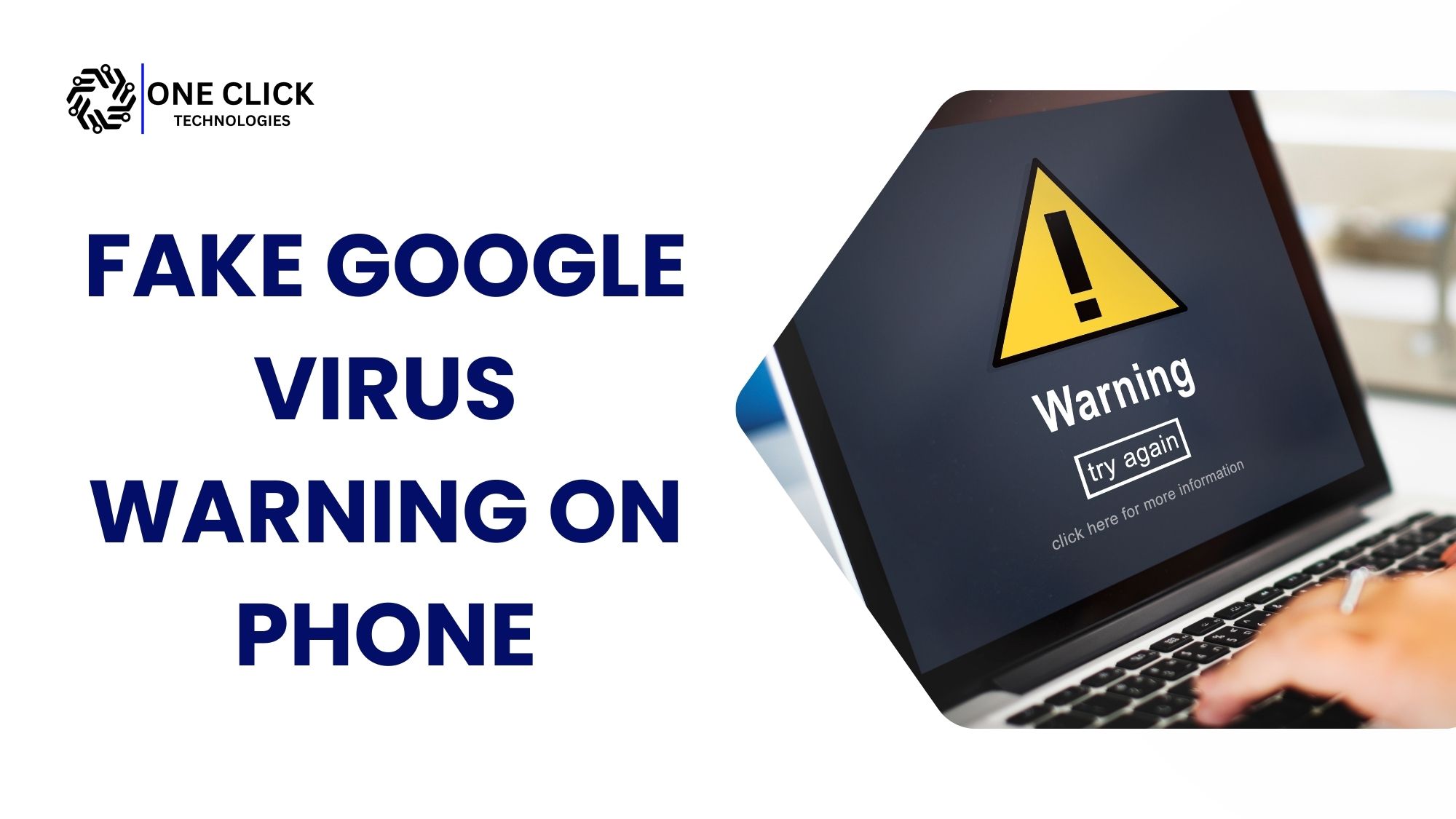
Read: Fake Google Virus Warning on Phone: Don’t Click It Until You Read This!
Fake Virus Alert vs Real Android Security Warning
A fake virus alert appears inside your browser as a webpage, while a real Android security warning appears in system settings or through an installed security app. Real alerts never demand instant payment or display countdown timers.
| Feature | Fake Virus Alert | Real Android Security Warning |
|---|---|---|
| Where it appears | Inside browser page | System notification or installed antivirus app |
| Tone | Urgent, threatening | Informational and calm |
| Payment demand | Immediate payment required | No forced payment |
| Scan result | Instant fake scan | Requires an installed app to scan |
| Countdown timer | Often used | Never used |
| App download link | Outside Play Store | From the official store only |
What Should I Do If I See a Fake Virus Warning Pop-Up?
If you see a fake virus warning pop-up, do not click anything inside the page. Close the browser safely and clear your browsing data to stop the script from reopening.
Follow these steps carefully:
Step 1: Do Not Tap Inside the Pop-Up
Do not press any buttons inside the warning, even if it says “Close” or “Remove Virus.” These buttons may redirect you to another malicious page.
Step 2: Close the Browser Tab Completely
Open the tab overview and close the suspicious tab fully. Make sure it is not just minimized.
Step 3: Force Stop the Browser App
If the pop-up keeps reappearing, go to Settings, open Apps, select Chrome, and tap Force Stop. This immediately shuts down the browser session and removes the active script.
Step 4: Clear Your Browser’s Cache and Cookies
After reopening the browser, go to settings and clear browsing data. Make sure you select cache and cookies. This removes stored redirect scripts that may trigger fake alerts again.
This combination of closing, force-stopping, and clearing data solves the issue in most cases.
Read: How Can I Remove a Google Virus Warning on iPhone Without Losing Data?
Why Fake Virus Alerts Often Keep Coming Back
Fake virus alerts often return because of browser notification permissions or suspicious apps installed on your device.
Here is how to fix it permanently:
- Check browser notification settings and remove unknown websites from the allowed list. Many malicious websites use push notifications to repeatedly display virus warnings.
- Review your installed apps carefully. Look for apps you do not recognize, apps with generic names, or fake antivirus apps. These may contain malicious scripts.
- If you find a suspicious app, uninstall it immediately through your app settings. Removing these apps stops repeated fake alerts.
By cleaning both browser permissions and installed apps, you eliminate the source.
Could My Android Device Actually Be Infected?
Most fake virus alerts do not mean your device is infected. However, you should check your device if you interacted with the pop-up.
Signs of a real virus include:
- New apps are appearing on your phone without your permission.
- Frequent ads appear even when you are not browsing.
- Significant battery drain or overheating without heavy usage.
- High mobile data consumption that you cannot explain.
If you do not see these symptoms, your phone is likely safe.
Can a Website Install a Virus on Android Without Permission?
No, a normal website cannot secretly install a virus on your Android device without your permission. Android requires user approval before installing apps or granting special access. However, malicious websites can trick users into downloading harmful apps manually.
Why This Matters
Many people panic after seeing a fake virus alert because they believe simply visiting a website infected their phone. In most cases, that is not true.
Here is how Android protects you:
- Android blocks automatic app installations unless you manually enable “Install from unknown sources.” This means a website cannot silently install malware without your interaction.
- Apps must request permissions such as storage, contacts, or device control before accessing them. If you never approved these permissions, the risk is minimal.
- Modern Android versions isolate browser activity from the rest of the operating system, reducing the chance of direct infection.
When Infection Can Actually Happen
A virus can only install if:
- You downloaded and installed an unknown APK file.
- You granted special permissions like device administrator access.
- You allowed remote access to your device.
If none of these happened, your phone is likely safe.
Should I Run a Full System Scan?
Yes. Running a full system scan gives you peace of mind and confirms there is no real malware.
Install a trusted antivirus app from the Play Store and run a complete scan of your device. This will check all installed apps, files, and system areas for threats.
You should also enable Google Play Protect. It continuously monitors installed apps for harmful behavior and helps prevent malware infections.
A full system scan ensures your phone is clean and secure.
Read: Pop-Ups, Crashes & Random Ads? Signs Your PC Needs Immediate Malware Removal
What If I Downloaded an App from the Fake Alert?
If you downloaded something after seeing a fake virus alert, uninstall it immediately and run a full scan.
Follow these steps:
- Go to your app settings and locate the suspicious app. If you do not recognize it, remove it immediately.
- Run a full antivirus scan to check for additional threats.
- Change important passwords if you entered login details anywhere.
- Monitor your bank accounts if payment details were entered.
If you granted remote access to your device, you should seek professional help immediately.
How to Avoid Fake Virus Alerts in the Future
You can avoid fake virus alerts by following smart browsing habits.
- Keep your Android operating system updated regularly. Updates patch known security weaknesses and improves overall protection.
- Install apps only from official sources like the Play Store. Avoid downloading apps directly from browser pop-ups.
- Avoid suspicious websites, especially those offering free downloads or streaming content that looks unsafe.
- Do not allow browser notifications from websites you do not fully trust. Review permissions regularly.
- Use a reliable antivirus app to scan your device periodically and protect against malware.
Practicing these habits reduces the chances of encountering a fake virus alert again.
What Personal Data Is at Risk If You Click a Fake Virus Alert?
If you click a fake virus alert and install a malicious app, your personal data such as passwords, banking details, photos, and emails, may be at risk. The danger depends on what permissions you granted.
Many people worry about what could happen if they accidentally tapped the alert.
Here is what scammers usually target:
- Banking information and saved payment details through fake antivirus apps that request accessibility permissions.
- Email and social media accounts by tricking users into entering login credentials on phishing pages.
- Contacts and messages if malicious apps gain access to storage and SMS permissions.
- Remote access control allows attackers to monitor screen activity.
Risk Level Table
| Action Taken | Risk Level | What To Do Immediately |
|---|---|---|
| Uninstall and run a full system scan | Very Low | Closed the browser without clicking |
| Downloaded an unknown app | Low | Clicked the alert but did not download |
| Downloaded unknown app | Medium | Clear the cache and continue using the device |
| Entered passwords | High | Change passwords immediately |
| Gave remote access | Critical | Clear browser data and scan the device |
When Should You Seek Professional Help?
You should consider professional help if the alerts keep returning, you installed suspicious apps, you entered payment details, or your device behaves unusually.
Professional remote IT support can:
- Scan your device for malware thoroughly.
- Remove hidden malicious software safely.
- Secure your apps and browser settings properly.
- Protect your device from future cybersecurity threats.
Need Expert Help to Remove Fake Virus Alerts?
If you are unsure whether your phone is safe, do not take risks.
OneClick Technologies LLC provides secure remote IT support for home users and businesses. Their professional technicians can scan your device, remove fake virus alerts, eliminate malware, and secure your phone properly without unnecessary downloads.
Visit https://oneclicktechnologies.us/ today to get trusted remote support and protect your device the right way.
Your phone contains your personal data, banking access, and work accounts. Taking quick and safe action now ensures your phone stays secure and your information stays protected.