Table of Contents
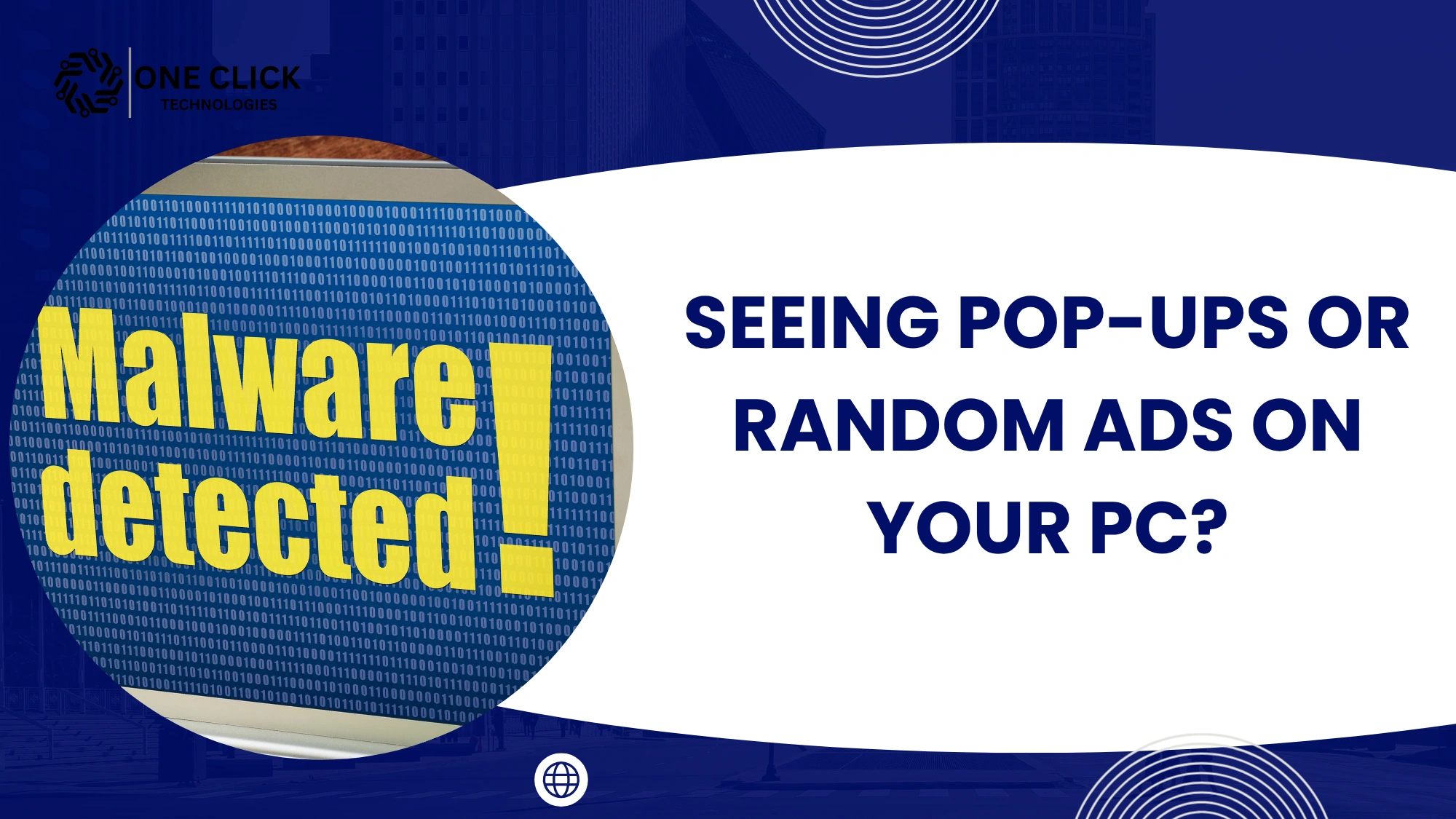
You’re working on an important document, and suddenly, your screen fills with ads. Tabs open on their own, your computer freezes, and your antivirus icon disappears from the taskbar. Sound familiar?
If your PC is acting like it has a mind of its own, the culprit is likely malware – software designed to cause harm or steal information.
Pop-ups, crashes, and unexpected ads are warning signs that your computer is infected and needs immediate PC malware removal. Malware spreads fast, compromises data, and can infect other devices on your home or office network if not removed quickly.
That’s why professional help from trusted experts like the team at OneClick Technologies LLC can make all the difference. We specialize in comprehensive malware detection, cleanup, and system protection, helping you restore stability and security in just one session.
Let’s explore how to spot the signs, stop the spread, and keep your devices malware-free.
What Exactly Is Malware and Why Does It Matter
The word malware comes from “malicious software.” It’s an umbrella term for programs created to disrupt, damage, or gain unauthorized access to your system. Unlike normal software, malware runs silently, often without your consent or awareness.
Malware can:
- Corrupt files and folders.
- Slow down or crash your operating system.
- Hijack browsers and steal passwords.
- Lock you out of your data through ransomware.
- Spread across networks, infecting other computers.
The most common types of malware include:
| Type | Description |
|---|---|
| Viruses | Attach to legitimate files and replicate, damaging your data. |
| Spyware | Secretly tracks your activities and captures sensitive information. |
| Adware | Displays intrusive ads or redirects your browser. |
| Trojans | Disguised as legitimate files but open backdoors for hackers. |
| Ransomware | Encrypts your files and demands payment for access. |
| Worms | Self-replicating malware that spreads without human action. |
Modern malware has evolved. It doesn’t just target desktops; it attacks Windows, macOS, Android, and iOS devices alike. That’s why having layered malware protection is essential for both home and business users.
The Most Common Signs of a Malware-Infected Computer
A healthy computer runs fast, secure, and quietly in the background. But when malware infection strikes, the symptoms are impossible to ignore if you know what to look for.
Here are the most common red flags:
1. Constant Pop-Ups and Redirects
If random ads appear when you’re not browsing, or your search engine keeps changing, you’re dealing with adware. These unwanted programs can redirect you to phishing websites and compromise your privacy.
2. Sluggish Performance
When malware runs in the background, it consumes RAM and CPU power. Programs take longer to load, and even simple tasks like opening files feel painfully slow.
3. Frequent System Crashes or Blue Screens
Malware can interfere with critical system files. If your computer crashes often or restarts on its own, that’s a sign of deeper corruption within your operating system.
4. Antivirus Disabled or Missing
Some malicious software disables Windows Defender or third-party antivirus protection to prevent detection. If your security software suddenly stops working, act fast.
5. Strange Files or Programs
Seeing unfamiliar applications or icons on your desktop? That’s a classic symptom of Trojan infection. These fake utilities run malicious code behind the scenes.
6. Unusual Network Activity
If your Wi-Fi light flickers constantly even when idle, malware could be sending your data to remote servers.
These subtle signs often appear together and ignoring them can lead to identity theft, data loss, or complete system failure.
How Malware Infects Your PC
Malware doesn’t need your permission – just a single click.
Here’s how infections typically happen:
| Infection Source | How It Works |
|---|---|
| Phishing Emails | Hackers trick you into clicking infected attachments. |
| Free Software Downloads | Hidden installers bundle adware or spyware. |
| Fake Updates | Pop-ups that say “Update your player” often deliver Trojans. |
| Public Wi-Fi | Hackers exploit unsecured networks to install malware. |
| Removable Drives | USB sticks can spread viruses and worms between systems. |
| Compromised Websites | Drive-by downloads infect your system just by visiting a page. |
Even legitimate sites can be compromised temporarily, so real-time protection and secure browsing habits are critical to staying safe.
Why Malware Is So Dangerous
Malware doesn’t just slow down your computer it compromises your entire digital environment.
1. It Steals Personal and Financial Data
Spyware records keystrokes, steals passwords, and can capture credit card numbers in real time.
2. It Corrupts Files and Software
Viruses can corrupt essential Windows system files, causing apps to malfunction or refuse to open.
3. It Demands Ransom
Ransomware encrypts your files and demands payment for decryption keys often with no guarantee of success.
4. It Spreads to Other Devices
Once in your network, malware can infect every device connected via Wi-Fi or shared drives.
5. It Weakens Cybersecurity Defenses
Malware often disables antivirus software and firewall settings, leaving your system exposed.
Unchecked infections can destroy years of work or personal memories in seconds. That’s why PC malware removal should be treated as an emergency, not an afterthought.
Steps to Remove Malware from Your PC
If you suspect your PC is infected, you can follow these expert-approved steps to restore safety.
Step 1: Disconnect From the Internet
Disconnecting breaks the malware’s communication channel. Turn off Wi-Fi or unplug your Ethernet cable.
Step 2: Boot in Safe Mode
Safe Mode loads only essential programs, making it easier to remove malware.
- Press Windows + R, type
msconfigselect Boot → Safe Boot, then restart.
Step 3: Run a Complete Malware Scan
Use Windows Defender or a premium anti-malware scanner for a thorough malware removal.
Choose “Full Scan” or “Quick Scan” depending on system performance.
Step 4: Remove Suspicious Programs
- Go to Control Panel → Programs and Features.
- Uninstall unknown or recently installed applications you don’t recognize.
Step 5: Clear Browser Cache and Extensions
Malicious extensions can reinstall malware even after removal.
Clear cache and remove extensions from Chrome, Edge, or Firefox.
Step 6: Update Windows and Drivers
A complete Windows Update helps patch vulnerabilities that malware exploits.
Step 7: Reboot and Re-Scan
Once cleaned, reboot and perform another scan to confirm that no hidden threats remain.
If your computer is still unstable or malware returns, professional tools and expertise are needed to root out deeper infections.
Why Free Antivirus Isn’t Enough
Many people rely on free antivirus tools, but they offer only basic protection. Advanced malware often bypasses them easily.
Free tools lack:
- Real-time ransomware protection
- Automatic threat updates
- Comprehensive malware detection
- Identity protection and secure VPN access
Professional malware removal and protection ensure your system gets proactive defense, not just cleanup after the damage is done.
How Malware Affects Different Operating Systems
Malware doesn’t target just one type of device; it adapts to every platform.
Windows 10 & 11
Still the most targeted OS globally. Attackers exploit unpatched updates and Windows Defender gaps.
MacOS
Although marketed as secure, MacOS faces rising threats from adware and Trojan payloads hidden in software downloads.
Android & iOS
Mobile devices are easy targets for spyware and fake apps. Android users should download and install only from verified stores, while iPhone users must avoid unofficial profiles.
Cross-Platform Threats
Some malware like viruses spread through cloud storage or email attachments, infecting devices regardless of system type.
The Role of Professional Malware Removal Services
Even with advanced tools, some infections dig deep into your system. That’s when professional malware removal becomes essential.
At OneClick Technologies LLC, our experts specialize in:
- Comprehensive malware detection using enterprise-grade scanners.
- Manual malware removal of persistent threats.
- System repair to restore the registry and performance.
- Ransomware and spyware cleanup for both personal and business systems.
- Ongoing malware protection to prevent reinfection.
We don’t just clean your system, we harden it. Our goal is long-term stability and safety.
Our Proven Malware Removal Process
Here’s what happens when you contact OneClick Technologies LLC for PC malware removal:
1. Free Diagnostic Check
We start with a remote assessment to identify infection types and severity.
2. Deep Malware Scan
Using trusted anti-malware scanners, we locate and quarantine all malicious files and registry traces.
3. Safe Removal and Repair
Our technicians carefully remove threats without harming your data or programs.
4. Security Reinforcement
We strengthen your antivirus protection, install software updates, and optimize settings to help keep malware away permanently.
5. Continuous Support
We provide ongoing cybersecurity protection and maintenance so your PC stays fast, secure, and protected.
Every session is handled securely, confidentially, and efficiently so you get results you can trust.
How to Prevent Malware in the Future
Removing malware is only half the battle; prevention ensures it never happens again.
Here are practical tips from our security experts:
- Keep your operating system updated – enable automatic Windows Updates.
- Run regular virus scans – schedule a quick scan every week.
- Avoid public Wi-Fi or use a VPN for encrypted connections.
- Don’t click unknown links – phishing emails remain the #1 infection method.
- Back up your files regularly – ransomware can’t hold your data hostage if you have backups.
- Use real-time protection software that runs in the background.
Following these habits builds a digital shield around your system, no pop-ups, no crashes, no random ads.
When to Call in the Experts
If your antivirus can’t remove an infection, or if pop-ups keep returning after every reboot, that’s your cue.
Professional help is crucial when:
- Malware blocks security software.
- Files are encrypted or deleted.
- Your PC becomes too slow to function.
- Data theft or ransomware is suspected.
At OneClick Technologies LLC, we provide fast, remote PC malware removal that restores security without you lifting a finger.
Why Choose OneClick Technologies LLC
We’re not just another tech company; we’re your IT safety net.
Our mission is simple: help people reclaim control of their devices by providing reliable, transparent, and affordable tech support.
What Makes Us Stand Out:
✅ Certified malware specialists with years of hands-on experience.
✅ Remote support that’s safe, fast, and secure.
✅ Proven success removing ransomware, spyware, and trojans.
✅ Tailored solutions for home users, small offices, and enterprises.
✅ We guide you on how to keep your system secure afterward.
With OneClick Technologies LLC, your computer is in expert hands.
Final Thoughts
Malware isn’t just an inconvenience; it’s a real digital danger that can compromise your data, privacy, and productivity.
Ignoring the warning signs like pop-ups, random ads, or system crashes only allows the infection to spread. The earlier you act, the easier it is to recover.
Whether you’re a home user or managing multiple office PCs, professional malware removal is your best defense against today’s sophisticated threats.
Get Professional Malware Removal Help
Your PC deserves better than constant crashes and suspicious ads.
👉 Contact OneClick Technologies LLC today for expert PC malware removal and system protection.
Our certified technicians will scan, detect, and remove malware remotely, restoring your computer’s speed, security, and stability – all in one quick session.
Don’t let malware take over. Act now and protect your data, your privacy, and your peace of mind.