Table of Contents
If you’ve just seen a scary “Google virus warning” pop-up on your phone, don’t panic- and definitely don’t click it. It’s almost certainly fake. These warnings are designed to trick you into downloading malicious software or revealing sensitive information. Instead of fixing a problem, clicking on such alerts can actually create one.
In this blog, you’ll learn how to spot a fake Google virus warning on your phone, why they appear, how to get rid of them, and how to protect yourself moving forward. Whether you’re using Android or another platform, this guide is for you.
What is a Fake Google Virus Warning on Phone?
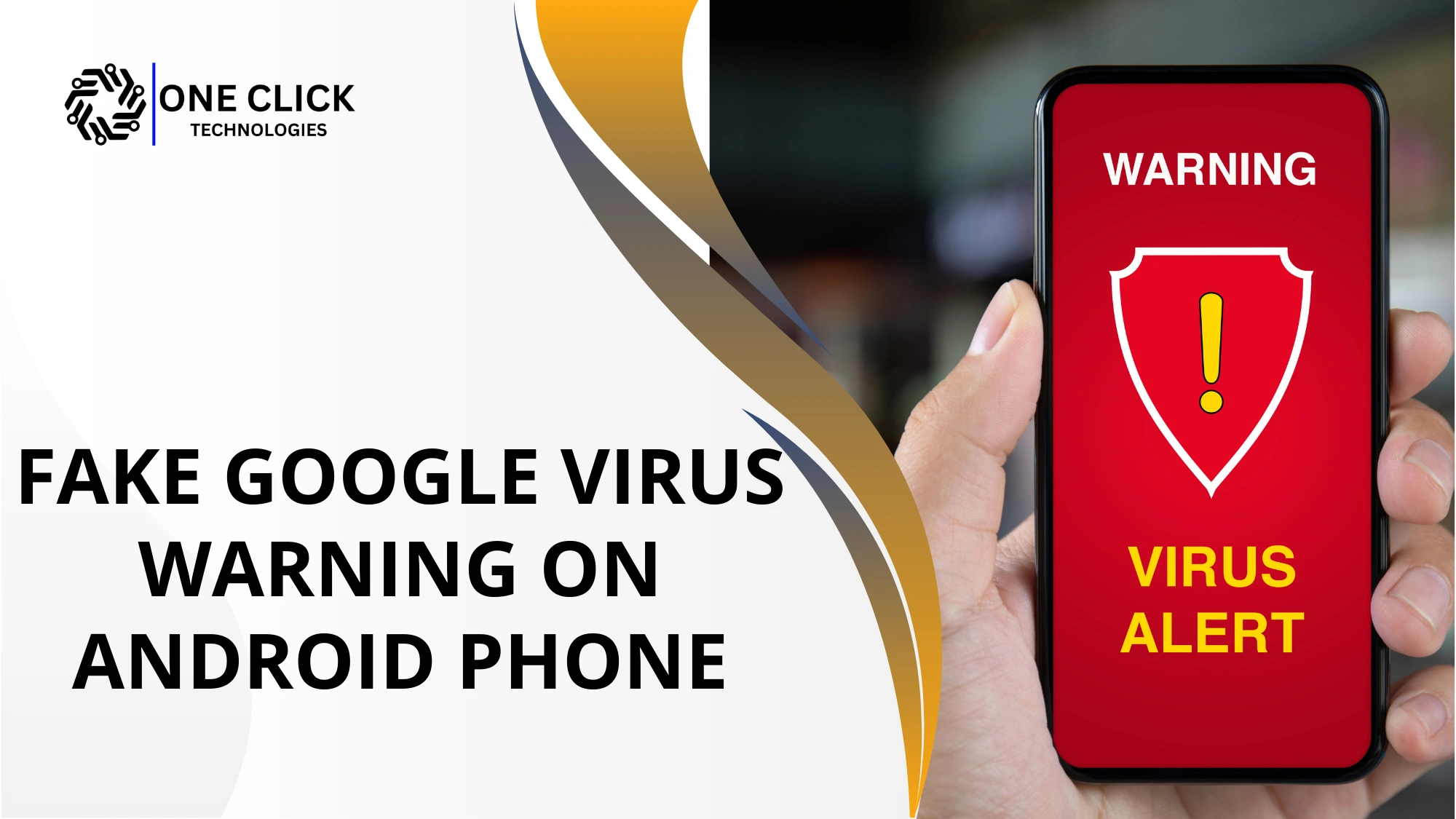
A fake Google virus warning on your phone is a scam message or pop-up designed to trick you into believing your device is infected, so you click malicious links, install harmful apps, or share personal information. The warning looks like it’s from Google, but it’s not.
The message usually says things like:
- “Virus alert: Your phone is infected!”
- “Your Android device is damaged. Tap here to repair.”
- “Google has detected malware. Scan now!”
These alerts are not real. They are just fake pop-ups created by scammers who want you to:
- Click a link,
- Install a suspicious app,
- Or call a fake support number.
Doing any of these things can actually make your phone worse by letting in real malware or giving hackers access to your device.
Why Am I Seeing This Virus Warning on My Phone?
You’re seeing this virus warning on your phone because a malicious website or fake pop-up ad is trying to scare you into clicking, downloading an app, or sharing personal information, not because your phone is actually infected.
If your phone is still showing these fake virus messages, there’s a reason. It usually happens when:
- You visit a bad website that shows scammy ads.
- You click on a suspicious link in a message, email, or social media.
- You accidentally installed a fake app that keeps showing these alerts.
- You allowed a website to send you notifications that now keep popping up.
In short, your phone isn’t broken, but something you clicked or downloaded is causing trouble in the background.
Are the Virus Warnings on Google Real?
No, they are not real. These warnings are fake virus alerts. Google does not send out pop-up virus messages like that.
Real virus alerts would come from:
- Your phone’s built-in security settings,
- Or from a legit antivirus app you installed.
If the alert is coming from a website, especially one you don’t recognize, it’s 99.9% fake.
These fake virus warnings try to scare you by saying things like:
- “Your data is at risk!”
- “You must act now or lose everything!”
But their goal is not to help you, it’s to trick you.
To know about: Top 10 Tech Scams Fooling Millions in Today – Don’t Fall for These Tricks
What Happens If I Click on the Fake Warning?
Clicking a fake warning can install malware, steal personal data, trigger fake subscriptions, or give scammers remote access to your device.
If you click on the fake warning, here’s what could go wrong:
- It might download a malicious app (that’s malware) onto your phone.
- It can ask for your personal information like your name, email, or even your credit card.
- Your phone might start showing more pop-ups or behaving strangely.
- The scammer might ask you to pay money to “fix” the problem.
- In some cases, the malware can spy on your phone or steal your passwords.
In short, clicking on the warning can cause real damage even though the warning itself is fake.
Key Stats:
- Nearly 70% of cybersecurity teams are understaffed, increasing exposure to malware and ransomware threats.
- Understaffed security teams struggle to detect and respond to cyberattacks quickly.
- The average ransomware attack now costs over $4.5 million, making it one of the most expensive cyber threats.
How Can I Tell If a Virus Warning Is Fake?
A virus warning is fake if it appears in your browser instead of system settings, uses urgent scare tactics, asks you to click links or call a number, and comes from an unknown or untrusted source.
Here are simple signs to spot a fake Google virus warning on phone:
- It appears while browsing. Real virus alerts don’t pop up in the browser.
- The language sounds urgent. Like “You must act now!” or “Click immediately!”
- It shows a random number to call. Google never does that.
- The alert looks weird. It might have spelling mistakes or strange logos.
- It asks for money. Real antivirus tools don’t ask for payment through pop-ups.
- You don’t even have an antivirus app installed. So, where’s this alert coming from?
If you notice any of the above, don’t trust the warning.
How to Remove a Fake Google Virus Warning from Your Phone?
Close the warning immediately, do not tap any buttons, clear your browser cache and site data, uninstall any suspicious apps, then run a full scan using Google Play Protect or a trusted mobile security app.
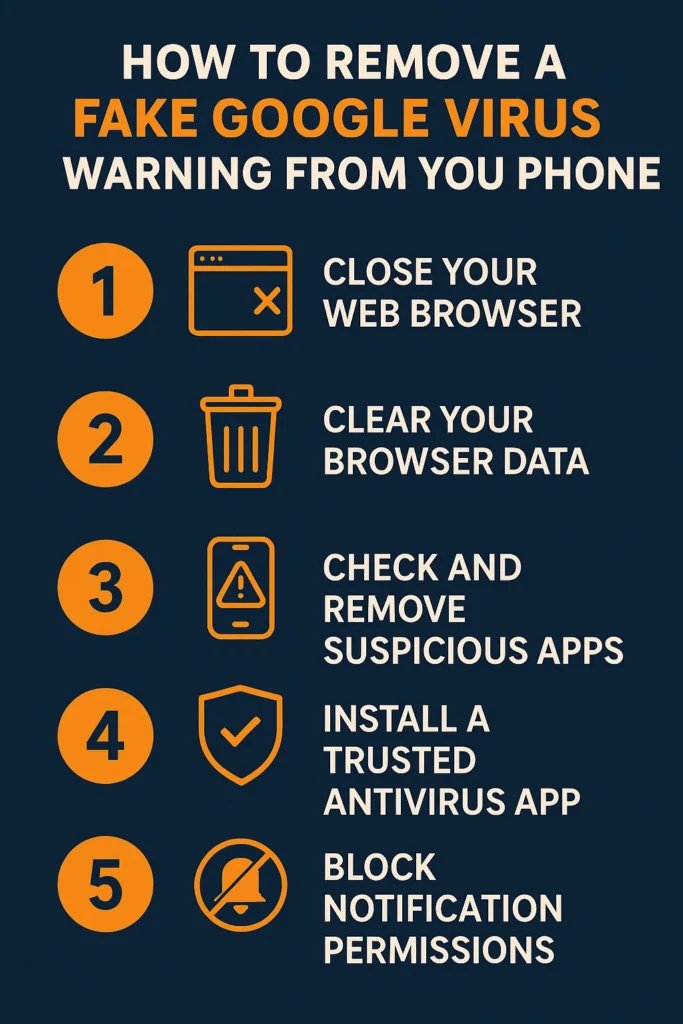
If you’re seeing these fake warnings again and again, don’t worry, you can remove them. Here’s a step-by-step guide anyone can follow:
Step 1: Close Your Web Browser
If the fake alert appears while browsing, don’t tap anything. Just close the browser completely.
Step 2: Clear Your Browser Data
Fake virus pop-ups often get stored in your browser’s memory.
- Open Settings > Apps > Chrome (or your browser).
- Tap on “Storage”.
- Press “Clear Cache” and then “Clear Data.”
This step removes saved junk that may be triggering the pop-ups.
Step 3: Check and Remove Suspicious Apps
Go to your phone’s Settings > Apps and check for apps you didn’t install on purpose. Look out for anything unusual or that you don’t recognize.
If you see something suspicious, uninstall it.
Step 4: Install a Trusted Antivirus App
Go to the Google Play Store and download a well-rated, free antivirus app. Use it to scan your device for malware.
Let it run a full scan, it can find and delete any hidden threats.
Step 5: Block Notification Permissions
Sometimes, websites you visit ask for notification access, and you accidentally said “yes.”
- Go to Settings > Notifications > Chrome (or your browser).
- Turn off notifications from suspicious sites.
This helps stop fake pop-ups from coming back.
How to Avoid Fake Virus Alerts in the Future
Avoid fake virus alerts by keeping your browser and antivirus updated, blocking suspicious pop-ups, and never clicking security warnings from unknown websites
Here are some easy tips to prevent fake virus warnings from showing up again:
- Never click on suspicious links in messages, emails, or websites.
- Don’t install apps from unknown sources; stick to the Google Play Store.
- Avoid shady websites, especially ones with too many ads or pop-ups.
- Turn on Google Play Protect in your settings.
- Keep your browser and system software updated.
- Use a legitimate antivirus app for extra protection.
- Don’t allow notifications from websites unless you trust them.
These small habits go a long way in keeping your phone safe from malicious pop-ups.
What If I Already Clicked the Warning?
If you already clicked the warning, disconnect from the internet immediately, close the browser, run a full malware scan, and change any passwords you entered as soon as possible.
Here’s what to do:
- Do not enter any personal details like passwords or card numbers.
- Close the browser or app where the pop-up appeared.
- Uninstall any apps you downloaded right after clicking.
- Run a full antivirus scan using a trusted security app.
- Change your passwords, especially for your email and bank accounts.
- Watch for any unusual activity on your device.
If your phone is still acting up, you may need help from a professional.
How Do I Get Rid of a Fake Virus Warning on Android?
You can get rid of a fake virus warning on Android by closing the source of the alert, removing suspicious apps, and cleaning your browser and notification settings.
Follow these steps in order:
- Close the browser immediately
Do not tap “Scan,” “OK,” or “Remove Virus.” Close the tab or force close the browser from Settings. - Clear browser data
Open your browser settings and clear cache, cookies, and site data to remove the fake warning source. - Remove suspicious apps
Uninstall any recently installed apps, especially those labeled as cleaners, boosters, flash players, or security tools. - Disable spam notifications
Go to browser notification settings and turn off notifications from unknown or suspicious websites. - Scan your phone with a trusted antivirus app
Use a legitimate antivirus from the Google Play Store to detect and remove adware or malware. - Restart your phone
Restarting ensures all malicious pop-ups and background processes are fully stopped.
Important things to remember:
- Fake virus warnings usually come from websites or adware, not Android itself
- Real Android security alerts do not appear as browser pop-ups
- Never download apps or call numbers shown in warning messages
If fake virus alerts keep coming back even after these steps, it may indicate hidden adware that requires professional remote assistance to remove safely.
Real Antivirus vs. Fake Antivirus
Let’s make something clear: there’s a big difference between a real antivirus and the fake antivirus apps these pop-ups try to make you install.
| Feature | Real Antivirus Apps | Fake Antivirus Apps |
|---|---|---|
| Source | Developed by well-known and trusted security companies | Created by unknown or unverified sources |
| Availability | Available on the Google Play Store | Often not available on the Play Store |
| Warning Style | Do not use scare tactics or urgent pop-ups | Use fear-based messages like “Fix now” or “Tap here” |
| Malware Detection | Actively scans, detects, and removes real malware | Does not perform real virus scanning |
| Security Features | Offers real-time protection and ongoing security updates | Lacks genuine security features |
| Payment Behavior | Clearly explains pricing and features before payment | Demands payment without providing real protection |
| Risk Level | Safe to install and use | May contain adware or malware itself |
| Purpose | Protects your device and personal data | Designed to scam or infect your phone |
That’s why you should only use trusted security apps for virus removal and protection.
To know about: Virus and Malware Removal: How to Keep Your Device Safe
Don’t Let Fake Virus Warnings Trick You
The truth is that these pop-ups are made to scare and confuse you. They play on your fear of getting hacked or losing your data. But you’re now smarter than that.
Remember:
- Google doesn’t send virus warnings through your browser.
- Clicking on fake alerts can lead to real problems.
- There are safe ways to remove malware and protect your device.
- You should always use real antivirus tools, not shady pop-ups.
Not Sure What to Do? Let OneClick Technologies LLC Help You
If all of this feels too confusing or if your phone is still showing virus alerts even after following the steps, it’s totally okay to ask for help.
At OneClick Technologies LLC, we specialize in:
- Removing fake virus warnings
- Cleaning infected devices
- Protecting your phone from future threats
- And providing expert support when you need it most.
Our team has helped hundreds of people just like you get rid of fake virus alerts, clean their Android phones, and keep their devices safe from malware and scammers.
Need Help Today? Let’s Fix It Fast
If your phone is showing pop-ups or you’re worried about a fake Google virus warning on your phone, don’t stress. You don’t have to handle it alone.
At OneClick Technologies LLC, we offer same-day help to remove viruses, pop-ups, and malware from your phone or computer. We’ll clean your device, protect your data, and help you stay safe online all with friendly service you can trust.
Contact OneClick Technologies LLC today, and let us handle the tech so you can get back to what matters without pop-ups and panic.
Frequently Asked Questions
1) Is there a real Google virus warning?
No, Google does not show virus warnings as pop-ups, so alerts claiming to be from Google are almost always fake.
2) Why am I getting a Google security warning on my phone?
You are seeing it because a malicious website or app is using scare tactics to trick you into clicking or installing software.
3) How do I clean my phone from viruses?
Uninstall suspicious apps, clear browser data, disable spam notifications, and scan your phone with a trusted antivirus app.
4) Can Google protect me from viruses?
Yes, Google Play Protect helps detect harmful apps, but it cannot stop fake virus warnings from websites or pop-ups.
5) How to check if your phone has a virus in settings?
Check installed apps, review app permissions, and look for unknown apps with excessive access in your phone’s settings.
6) How to stop pop up ads on Android phone?
Disable browser notifications, remove ad-supported apps, and turn on pop-up blocking in your browser settings.
7) How to clean your phone from virus for free?
You can remove viruses for free by uninstalling harmful apps, clearing browser data, and using Google Play Protect.
8) How to remove virus from Android phone manually?
Manually remove viruses by deleting suspicious apps, revoking risky permissions, clearing browser data, and restarting the phone.
9) How to fix security warning on Android phone?
Close the warning, clear browser cache, remove unknown apps, disable suspicious notifications, and run a security scan.
10) Why do I keep getting a virus warning on my phone?
You keep seeing it because a website, app, or notification permission is repeatedly triggering fake security alerts.